NetoMeter Blog
Main Site >>
NetoMeter Blog
NetoMeter Blog
Latest Videos
  • Home
  • Windows Server
  • Exchange Server
  • SharePoint
  • Tools
    • ACMEExchange Client
Main Site >>
Friday, November 6, 2026
NetoMeter Blog
NetoMeter Blog
  • Main Site >>
  • Home
  • Windows Server
  • Exchange Server
  • SharePoint
  • Latest Videos
  • Upcoming
Main Site >>

©2024 NetoMeter All Right Reserved.
ACME Exchange Client for LE Certificates for Exchange Server
Exchange 2016Exchange 2019Exchange ServerExchange Server 2010Exchange Server 2013Latest Screencasts

ACMEExchange Let’s Encrypt Client: How to Install a LE Certificate in Exchange Server

by admin November 26, 2023

ACMEExchange: A Free Let’s Encrypt Client for Microsoft Exchange Servers

Download ACMEExchange 2.3.0

Client Features:

  • Supports Microsoft Exchange 2019, Exchange 2016, Exchange 2013, and Exchange 2010 server.
  • Simplified and easy to use – just four options and you are good to go (check the video demo).
  • Automatic renewal – the client creates a renewal job in the Task Scheduler.
  • Dependable – deploys a set it and forget it approach; the Let’s Encrypt certificates are managed automatically for you.
  • Detailed logging and email reporting – a certificate renewal report with an info log attached is sent to the provided admin email(s) upon each LE certificate renewal.
  • Easy to add and remove names from the certificate – just run it with the –dns option and the names that you need.
  • Easy Let’s Encrypt certificate renewal – just run it with the –renew option.
  • It’s free – a free Let’s Encrypt client for the LE certificates in Microsoft Exchange Server.

The ACMEExchange client for Let’s Encrypt certificates for Exchange servers that we provide is using the ACMESharpCore library written by Eugene Bekker and available on GitHub.

We have made the client as simple to use as possible, cutting out any extra functionality and tuning it solely for the needs of the Exchange Server admin. On the other hand, it fully automates the process of installing and renewing trusted Let’s Encrypt certificates in Exchange servers.

If you feel that extra functionality needs to be added or you have suggestions for improving the client, we would appreciate your feedback.

ACMEExchange LE Client: How to install a Let’s Encrypt Certificate in Exchange Server 2019

ACMEExchange Client for Let's Encrypt Certificates for Exchange Server
ACMEExchange_Letsencrypt_Client

  • How to Upgrade from Exchange 2013 to Exchange 2019 – Part 1
  • How to Upgrade from Exchange 2013 to Exchange 2019 – Part 2
  • How to Install Exchange 2016
  • How to Upgrade Exchange 2007 to Exchange 2013: Part1
  • How to Upgrade Exchange 2007 to Exchange 2013: Part2
  • How to Configure HTTP to HTTPS OWA Redirection in Exchange 2013
1 FacebookTwitterPinterestLinkedinWhatsappTelegramViberEmail
Exchange 2019Latest Screencasts

Screencast (Part 2): How to Upgrade from Exchange 2013 to Exchange 2019

by admin July 6, 2023
Part 2: 

  • Create a dedicated public folder database and relocate the DB and log files to the corresponding volumes. We check the Storage Quotas on the Exchange 2019 DB as well to make sure that they match or exceed the quotas that we have documented in part 1.
  • Create and modify the required connectors. Test the mail flow between a test mailbox on the Exchange 2019 server and the mailboxes on the legacy Exchange 2013 server. Change the name resolution and perform the actual switch of the mailflow. Test the normal functionality.
  • Demonstrate the different approaches for moving the mailboxes and outline their advantages and disadvantages. Move the arbitration and Discover Search mailboxes to Exchange 2019 server.
  • Demonstrate different ways to organize and move the user mailboxes in batches, including the option to complete the move requests after work hours, to minimize the impact on the clients.
  • Migrate and validate the migration of the public folders to Exchange 2019 server.
  • Enable and validate the new transport protocol – MAPI over HTTP.
  • Decommission the legacy Exchange 2013 server and perform a final validation.

In this Screencast Part 2: Upgrade Exchange 2013 to Exchange 2019, we complete the upgrade from Exchange 2013 to Exchange 2019. This is the second and last part of the two-part Screencast. In the first part, we go through the obligatory health checks of the existing Active Directory and Exchange organization, and we pay attention to the most common mistakes and issues that you might have.
In the second part, we perform the actual migration of the resources and switch the mailflow alongside with the required health checks and validation procedures. In addition, we enable and validate MAPI over HTTP.

For your convenience, the text file with the commands and the plan that we follow is available for download on the Screencast page.

Part 2: Upgrade Exchange 2013 to Exchange 2019

how-to-upgrade-from-excPart 2: How to Upgrade from Exchange 2013 to Exchange 2019

  • How to Upgrade from Exchange 2013 to Exchange 2019 – Part 1
  • How to Install Let’s Encrypt Free SSL Certificates on Windows Server (IIS)
  • How to Install Exchange 2016
  • How to Upgrade Exchange 2007 to Exchange 2013: Part1
  • How to Upgrade Exchange 2007 to Exchange 2013: Part2
  • How to Configure HTTP to HTTPS OWA Redirection in Exchange 2013
0 FacebookTwitterPinterestLinkedinWhatsappTelegramViberEmail
Exchange 2019Latest Screencasts

Screencast: How to Upgrade from Exchange 2013 to Exchange 2019

by admin March 16, 2022
Part 1: 

  • Overview of the existing configuration and the upgrade plan
  • Active Directory requirements and health checks – AD replication, DNS health, DCDiag and DNSLint reports
  • Exchange 2013 prerequisites, health checks, and documenting the existing configuration
  • Configuring the new server for Exchange 2019 and preparing Active Directory and Domains
  • Exchange 2019 installation, ExchangeSetup.log monitoring in real time. Addressing the problem with the SCP
  • Validating the Exchange 2019 installation and updating the server

In this Screencast Upgrade Exchange 2013 to Exchange 2019, we demonstrate how to upgrade from Exchange 2013 to Exchange 2019. This is a two-part Screencast – in the first part, we go through the obligatory health checks of the existing Active Directory and Exchange organization, and we pay attention to the most common mistakes and issues that you might have.

For your convenience, the text file with the commands and the plan that we follow is available for download on the Screencast page.

Upgrade Exchange 2013 to Exchange 2019 – Overview

Exchange 2019 Upgrade
How to Upgrade from Exchange 2013 to Exchange 2019

  • How to Install a Let’s Encrypt SAN Certificate in Exchange 2016
  • How to Install Let’s Encrypt Free SSL Certificates on Windows Server (IIS)
  • How to Install Exchange 2016
  • How to Upgrade Exchange 2007 to Exchange 2013: Part1
  • How to Upgrade Exchange 2007 to Exchange 2013: Part2
  • How to Configure HTTP to HTTPS OWA Redirection in Exchange 2013
0 FacebookTwitterPinterestLinkedinWhatsappTelegramViberEmail
Windows Server 2003Windows Server 2012

Migrate File Server 2003 to Server 2012 R2

by admin February 12, 2015


Screencast :Server 2003 Migrations

  • Consolidate multiple legacy servers
  • Preserve share paths and security permissions
  • Minimize downtime and avoid reconfiguring clients and applications

In this Screencast How to Migrate Server 2003 File Servers to Server 2012 R2, we demonstrate how to migrate and consolidate multiple Server 2003 file servers to Server 2012 R2.

The key requirements in this project are:
– Preserving the existing Sharing and Security permissions.
– Preserving the UNC Share paths, so no reconfiguration of the clients and applications are required.
– Minimizing downtime

To cover these requirements, we’ll be using the Microsoft File Server Migration Toolkit. It allows you to migrate data in two passes. During the first pass, users can still access the file shares, and you can perform it during regular working hours. The second pass performs the actual cut over, when the delta is copied and applied to the destination shares and client access is interrupted.

When the migration project completes, we demonstrate an elegant way to preserve the UNC paths and restore access to the migrated file shares on the destination server right away, effectively minimizing downtime.

File Server 2003 Migration to Server 2012 R2
Migrate Server 2003 File Server to Server 2012 R2

Screencast: Migrate File Servers 2003 to Server 2012 R2:http://t.co/BgQsrSnCJ4#Server2003 #Migration #NoDownTime

— NetoMeter (@netometer) March 10, 2015

  • How to Demote the Last Server 2003 Domain Controller
  • How to Add a Second Server 2012 Domain Controller
  • How to Configure Storage Tiers and Write-Back Cache in Server 2012 R2
  • How to Configure DHCP Failover in Windows Server 2012
  • How to Migrate DHCP Server to Windows Server 2012
  • How to Upgrade Active Directory Domain to Windows Server 2012
0 FacebookTwitterPinterestLinkedinWhatsappTelegramViberEmail
UpcomingWindows Server 2022

Coming Soon: How to Migrate File Servers to Server 2022

by admin July 6, 2023

In this upcoming screencast, we demonstrate how to perform the storage migration from your existing file servers to Server 2022.

0 FacebookTwitterPinterestLinkedinWhatsappTelegramViberEmail
Exchange 2016

Video: How to Install a Let’s Encrypt Certificate in Exchange Server 2016

by admin November 27, 2016

This screencast refers to the ACME v1 client which does not work anymore.
Please check the new free ACMEExchange client which works with ACME v2 protocol and supports Exchange 2010 – 2019.

The ACMEExchange client is available here.

Screencast :Let’s Encrypt Exchange Certificate – Exchange 2016

  • Configure Exchange 2016 Client Access Namespace and Internal Name Resolution
  • Install a Let’s Encrypt Multiple Domain (SAN) Certificate
  • Explain ACME (Automated Certificate Management Environment) Protocol Functionality
  • Configure and Test the Automatic Let’s Encrypt Exchange Certificate Renewal

In this Screencast Lettsencrypt Exchange Certificate, we demonstrate how to install a Let’s Encrypt Multiple Domain (SAN) certificate in Exchange 2016.
Currently, there are two functional ACME clients for windows:

  • Letsencrypt Win Simple client
  • ACMESharp PowerShell module

We’ve already demonstrated the Letsencrypt Win Simple client in the following video Lettsencrypt Win Simple client, and it is suitable for installing single domain certificates on Windows servers running IIS.

For your convenience, we provide as a download the compiled version used in our demo. The text file with the PowerShell commands for the Exchange 2016 Client Access Namespace configuration and the ACME-Exchange.ps1 script used for the automated installation and renewal of Let’s Encrypt Exchange certificates are included in the download package as well.

Letsencrypt Exchange Certificate

Step 2: How to Install a Letsencrypt Certificate in Exchange 2016
Letsencrypt Exchange Certificate

  • How to Install a Let’s Encrypt SAN Certificate in Exchange 2016
  • How to Install Let’s Encrypt Free SSL Certificates on Windows Server (IIS)
  • How to Install Exchange 2016
  • How to Upgrade Exchange 2007 to Exchange 2013: Part1
  • How to Upgrade Exchange 2007 to Exchange 2013: Part2
  • How to Configure HTTP to HTTPS OWA Redirection in Exchange 2013
0 FacebookTwitterPinterestLinkedinWhatsappTelegramViberEmail
Windows Server 2012

Letsencrypt Windows Client: How to Install Let’s Encrypt Free SSL Certificates on Windows Server

by admin May 22, 2016

This video refers to the ACME v1 client which does not work anymore.
Please check the new free ACMEExchange client which works with ACME v2 protocol and supports Exchange 2010 – 2019.

The ACMEExchange client is available here.

In this video, we demonstrate how to install Let’s Encrypt SSL certificates on Windows Servers running IIS. The demonstration is performed on Server 2012 R2, and we have tested successfully the Letsencrypt Win Simple Client on Server 2008 R2 and Server 2016.

Currently, there are two functional ACME clients for windows:

  • Letsencrypt Win Simple client
  • ACMESharp PowerShell module

In this video, we demonstrate the first client, Letsencrypt Win Simple, which is suitable for installing single domain certificates on Windows Servers running IIS. The second Lestencrypt client, the ACMESharp PowerShell module, is suitable for installing Multiple Domain (SAN) certificates on Exchange servers, and we demonstrate the process in detail in the following Screencast Lettsencrypt Exchange Certificate.

You can download the letsencrypt-win-simple [tip label=”Compiled Build” style=”1″ href=”https://www.netometer.com/downloads/letsencrypt-win-simple-v1.9.1.1.zip”]letsencrypt-win-simple-v1.9.1.1.zipPowerShell Commands[/tip] that we are using in the demo.

Let’s Encrypt CALet’s Encrypt is a free, automated, and open certificate authority brought to you by the Internet Security Research Group (ISRG). It entered public beta in September 2015 and completed it successfully on April 12th,2016, issuing more than 1.7 million certificates for more than 3.8 million websites. The project is sponsored by Mozilla, Akamai, Cisco, Chrome …
Running Let's Encrypt Windows Client on Server 2012 R2
Letsencrypt Windows Client: Requesting Certificates for Multiple Sites
  • How to Install a Let’s Encrypt SAN Certificate in Exchange 2016
  • How to Install Exchange 2016
  • How to Upgrade Exchange 2007 to Exchange 2013: Part1
  • How to Upgrade Exchange 2007 to Exchange 2013: Part2
  • How to Configure HTTP to HTTPS OWA Redirection in Exchange 2013
0 FacebookTwitterPinterestLinkedinWhatsappTelegramViberEmail
Exchange 2016Upcoming

Screencast: How to Install a Trusted SAN Certificate in Exchange 2016

by admin April 17, 2016

In this screencast, we will demonstrate how to install a trusted multiple domain (SAN) certificate in Exchange 2016:

  • Configure Exchange 2016 virtual directories
  • Configure internal and external name resolution
  • Request and install a trusted multiple domain (SAN) certificate

Exchange 2016 SAN Certificate

0 FacebookTwitterPinterestLinkedinWhatsappTelegramViberEmail
Exchange 2016

Screencast: How to Install Exchange 2016

by admin December 13, 2015


Screencast :How to Install Exchange Server 2016

  • Perform Active Directory Health Check
  • Install Exchange 2016 Prerequisites and Prepare the Schema
  • Install Exchange Server 2016
  • Validate the Installation and Move the Exchange DB and Log Files to Dedicated ReFS volumes

In this Screencast How to Install Exchange 2016, we demonstrate how to perform a new (greenfield) installation of Exchange Server 2016 on Windows Server 2012 R2. In our demo, we are dealing with a single domain/single forest configuration, but the demonstrated approach is applicable to a multiple domain environment as well. Once we confirm that we are dealing with a healthy AD configuration and we cover the Exchange 2016 directory server requirements, we proceed with extending the schema and preparing the AD.

Next, we prepare the server and perform the actual Exchange 2016 installation, followed by a validation and testing of the new Exchange 2016 server.

Finally, we demonstrate how to prepare dedicated volumes for the Exchange DB and logs (the Exchange setup wizard doesn’t offer the option to choose a location for the database and log files), and how to rename and move the Exchange 2016 DB and logs to their corresponding volumes

How to Install Exchange 2016

Screencast: How to Install Exchange Server 2016
How to Install Exchange 2016

Screencast: How to Install Exchange 2016 step-by-step video tutorial https://t.co/akAilfytMN

— NetoMeter (@netometer) December 9, 2015

  • How to Install Exchange 2013
  • How to Upgrade Exchange 2007 to Exchange 2013: Part1
  • How to Upgrade Exchange 2007 to Exchange 2013: Part2
  • How to Configure HTTP to HTTPS OWA Redirection in Exchange 2013
0 FacebookTwitterPinterestLinkedinWhatsappTelegramViberEmail
Exchange 2016

Screencast: Exchange 2016 Initial Configuration

by admin March 30, 2015

In this screencast, we will demonstrate how to perform the Exchange 2016 initial configuration:

  • Create Exchange DB and relocating existing DB and log files.
  • Configure Internet send connector – sending outbound emails directly or through a smart host.
  • Configure a valid postmaster address (according to RFC 5321).
  • Bulk create mailboxes.
  • Configure Exchange Virtual Directories.

Exchange 2016 Initial Configuration

0 FacebookTwitterPinterestLinkedinWhatsappTelegramViberEmail
Free ScreencastsVirtualization

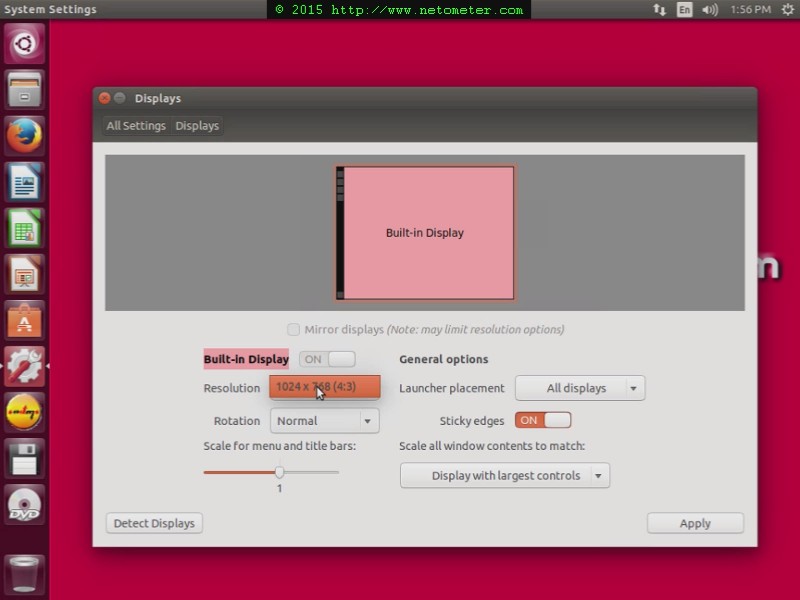
Hyper-V: How to Change Screen Resolution in Ubuntu Virtual Machines

by admin March 7, 2015


Free Video :Hyper-V: Change Resolution in Ubuntu VM

Changing the screen resolution in Hyper-V virtual machines running Linux OS turns to be a well known problem. Moreover, depending on the guest OS, the solution is different. We’ve already demonstrated how to change the screen resolution in CentOS and Red Hat Hyper-V Virtual Machines in the following video How to Change Screen Resolution in CentOS / Red Hat Virtual Machines,

In this short video, we demonstrate how to change the screen resolution in Ubuntu Hyper-V Virtual Machines. For your convenience, we provide the commands that we are using in the video:
# Use “sudoedit” to modify the “/etc/default/grub” file
# for the Microsoft Hyper-V Synthetic Video Frame Buffer driver
sudoedit /etc/default/grub
# Modify the “GRUB_CMDLINE_LINUX_DEFAULT” line passing the video argument with the required resolution
# for the Microsoft Hyper-V Synthetic Video Frame Buffer driver
GRUB_CMDLINE_LINUX_DEFAULT=”quiet splash video=hyperv_fb:1024×768″
# Apply the changes to the grub.cfg
sudo update-grub
# A reboot is required to apply the changes:
reboot

Tweet #HyperV #CentOS Follow @netometer

Hyper-V: Change Resolution in Ubuntu VM

Tweet #Linux Follow @netometer

  • Hyper-V: How to Change Screen Resolution in CentOS and Red Hat Virtual Machines
  • How to Install Exchange 2013
  • How to Configure Outlook Anywhere in Exchange Server 2007
  • How to Install WordPress on Windows Server 2012
0 FacebookTwitterPinterestLinkedinWhatsappTelegramViberEmail
Newer Posts
Older Posts
November 2026
M T W T F S S
 1
2345678
9101112131415
16171819202122
23242526272829
30  
« Nov    

NetoMeter Blog

  • Video Updates
  • Upcoming Videos
  • Community Chatrooms
  • Community Forum
Facebook Twitter Rss Envelope

Useful Links

    • Contact Us
    • Collaboration
    • Adverstising
    • Privacy Policy
    • Feedback
    • Terms of Use
    • Help & Support
    • News Covering
    • Trending Now

Edtior's Picks

ACMEExchange Let’s Encrypt Client: How to Install a LE Certificate in Exchange Server
Coming Soon: How to Migrate File Servers to Server 2022
Screencast (Part 2): How to Upgrade from Exchange 2013 to Exchange 2019

Latest Articles

ACMEExchange Let’s Encrypt Client: How to Install a LE Certificate in Exchange Server
Coming Soon: How to Migrate File Servers to Server 2022
Screencast (Part 2): How to Upgrade from Exchange 2013 to Exchange 2019
Screencast: How to Upgrade from Exchange 2013 to Exchange 2019
NetoMeter Blog
  • Home
  • Windows Server
  • Exchange Server
  • SharePoint
  • Tools
    • ACMEExchange Client
NetoMeter Blog
  • Main Site >>
  • Home
  • Windows Server
  • Exchange Server
  • SharePoint
  • Latest Videos
  • Upcoming
©2024 NetoMeter All Right Reserved.