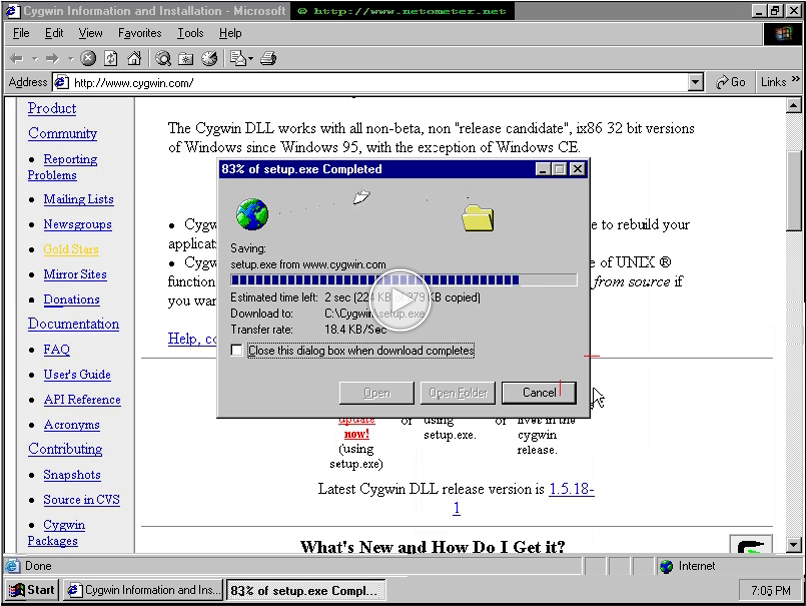
If you are familiar with SSH, and need to have SSH service configured, and running on your NT4.0 server, take a look at the following tutorial. We are using the free OpenSSH server which comes with the Cygwin environment.




If you are familiar with SSH, and need to have SSH service configured, and running on your NT4.0 server, take a look at the following tutorial. We are using the free OpenSSH server which comes with the Cygwin environment.
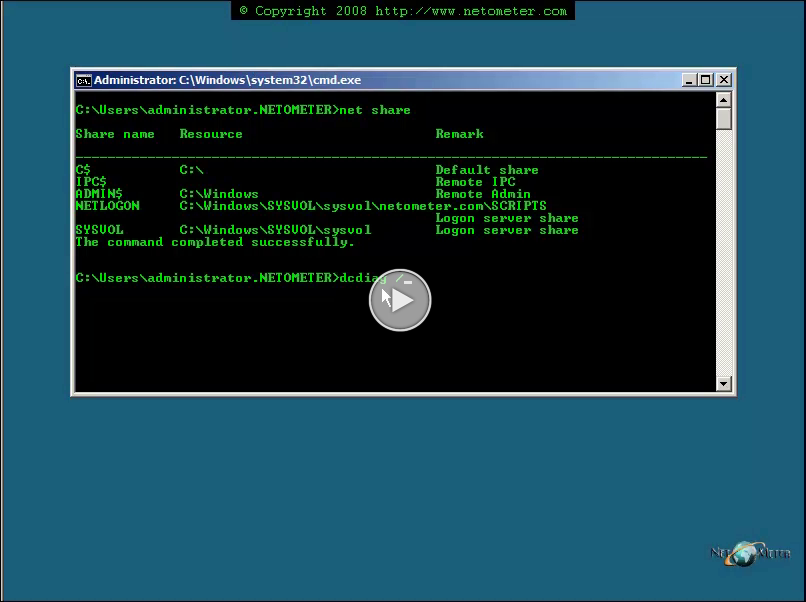
As we have demonstrated in one of our Core Server screencasts –
How to Install Domain Controller Role on Server Core, running DCPROMO requires that you provide the necessary information either by an unattend file or by switches. By default, Core Server does not come with a DCPROMO wizard.
Another, more comfortable option is, to provide the answers in unattend file (for example unattend.txt), and run DCPROMO using this file.
One of the options in the CoreConfigurator utility, written by Guy Teverovsky, Core Server Configurator is, to run a DCPROMO wizard which helps you generate a DCPROMO answer file, and run DCPROMO with it.
It is still a good idea to take a look at the DCPROMO options, as we have demonstrated in our previous screencast. Depending on your needs, you have to decide which of them will be suitable for your situation. The CoreConfigurator DCPROMO wizard generally covers the most important parameters. In addition, when you finish generating the answer file, you have the option to modify your answers manually, add more parameters if necessary, and save the file. At this point, you can choose to cancel the wizard and run DCPROMO later using the created unattend file, or run DCPROMO through the wizard. In a production environment, cancelling the wizard and running manually DCPROMO with the generated unattend file will provide you with real time information about the DCPROMO process, and the stages through which it goes. It is also a good idea to pipe these results into a log file and examine it at the end. For the purposes of this demonstration, we will finish DCPROMO using the CoreConfigurator.
In the following screencast, you will see how to promote a Server Core as a DC, and how to check the result of DCPROMO.
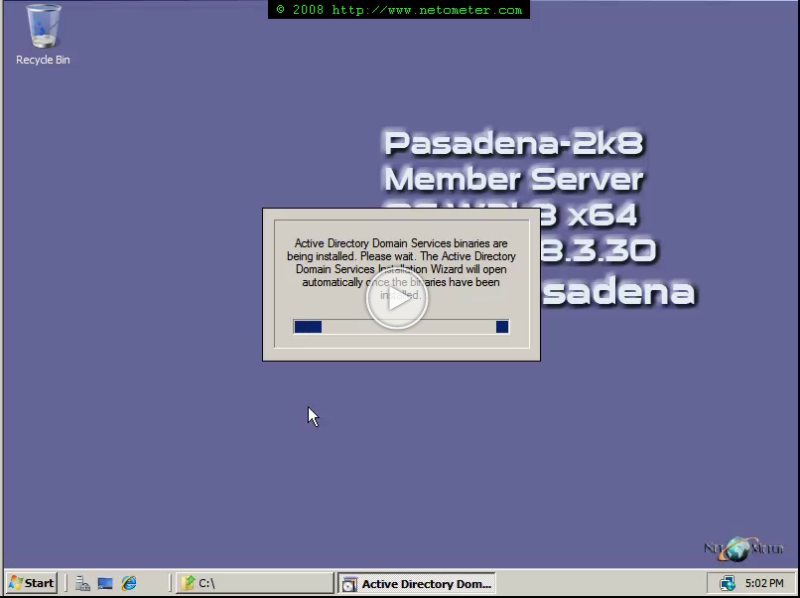
We have demonstrated the installation of Active Directory Domain Services (AD DS) in Windows Server 2008 in one of our Core Server screencasts – How to Install a Windows 2008 Server Forest – Adding AD Domain Services Role. The process of installing an additional Domain Controller – a Replica DC, is performed in a similar way. Very often, the new Domain Controller is placed in a remote site connected with a broadband connection to the headquarters. During the promotion of the new DC, the initial replications of all Active Directory could be time and bandwidth consuming.
The Install from Media (IFM) option has been available in Windows Server 2003 – you could create installation media by restoring a system state backup of another domain controller.
One of the many new features in Windows Server 2008 is the improved NTDS utility, which provides you with a nice and easy way to create AD DS installation media. Once you see it, you are going to love it. You can still use a system state backup, as an installation media in Windows Server 2008, but a system state backup of a domain controller that runs Windows Server 2008 typically includes more data than is required to perform an IFM operation. In addition, working with System State Backups and Restores is going to be a topic of a different Screencast.
The new ntdsutil ifm subcommand is also recommended, because you can use it to remove secrets, such as passwords from the AD DS database, so that you can install a read-only domain controller (RODC). When you remove these secrets, the RODC installation media would be more secure, if it must be transported to a branch office for an RODC installation.
You can use a 32-bit domain controller to generate installation media for a 64-bit domain controller, and vice-versa. The installation media can be stored on a local drive, removable media, such as a DVD, or on a network shared folder.
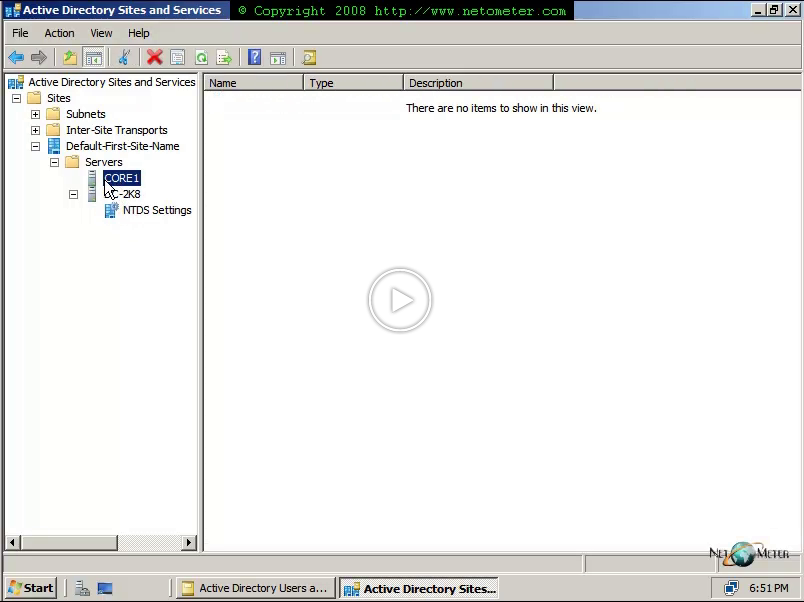
In the following Screencast, we will demonstrate the whole scenario of adding an additional Domain Controller in a remote office using Install from Media (IFM). The video steps include creating a new site, adding subnets in Active Directory Sites and Services, preparing and checking the Active Directory Installation Media, promoting the new DC at the remote site using IFM, and checking the result of the promotion.
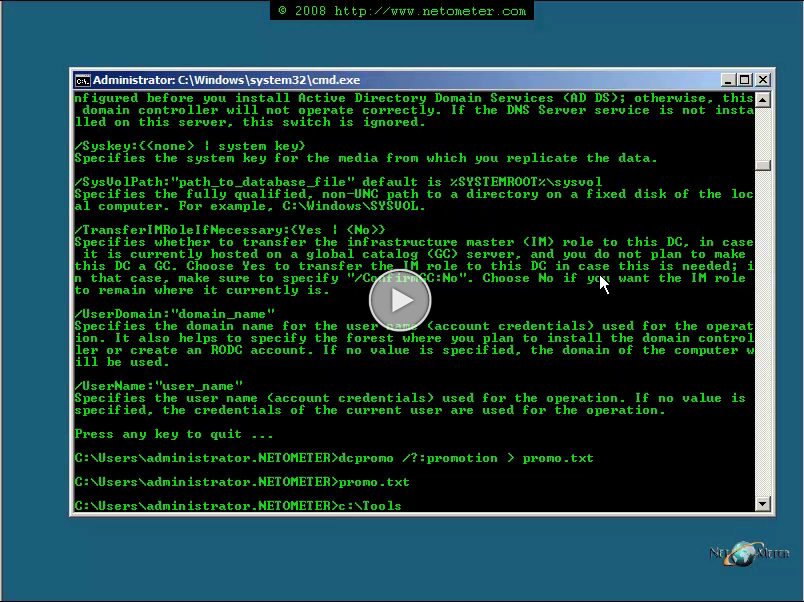
We have demonstrated the installation of Active Directory Domain Services (AD DS) in Windows Server 2008 in one of our Core Server screencasts – How to Install a Windows 2008 Server Forest – Adding AD Domain Services Role. The process of installing an additional Domain Controller – a Replica DC, is performed in a similar way. Very often, the new Domain Controller is placed in a remote site connected with a broadband connection to the headquarters. During the promotion of the new DC, the initial replications of all Active Directory could be time and bandwidth consuming.
The Install from Media (IFM) option has been available in Windows Server 2003 – you could create installation media by restoring a system state backup of another domain controller.
One of the many new features in Windows Server 2008 is the improved NTDS utility which provides you with a nice and easy way to create AD DS installation media. Once you see it, you are going to love it. You can still use a system state backup as installation media in Windows Server 2008, but a system state backup of a domain controller that runs Windows Server 2008 typically includes more data than is required to perform an IFM operation. In addition, working with System State Backups and Restores is going to be a topic of a different Screencast.
The new ntdsutil ifm subcommand is also recommended, because you can use it to remove secrets, such as passwords, from the AD DS database, so that you can install a read-only domain controller (RODC). When you remove these secrets, the RODC installation media is more secure if it must be transported to a branch office for an RODC installation.
You must use writable domain controller installation media to install a writable domain controller, while you can use writable domain controller installation media or RODC installation media to install an RODC.
You can use a 32-bit domain controller to generate installation media for a 64-bit domain controller, and vice-versa. The installation media can be stored on a local drive, removable media such as a DVD, or on a network shared folder.
In the following Screencast, we demonstrate the whole scenario of adding an additional Server Core Domain Controller in a remote office using Install from Media (IFM). The video steps include creating a new site and adding subnets in Active Directory Sites and Services, Preparing and checking the Active Directory Installation Media, promoting the new DC at the remote site using IFM and checking the result of the promotion.
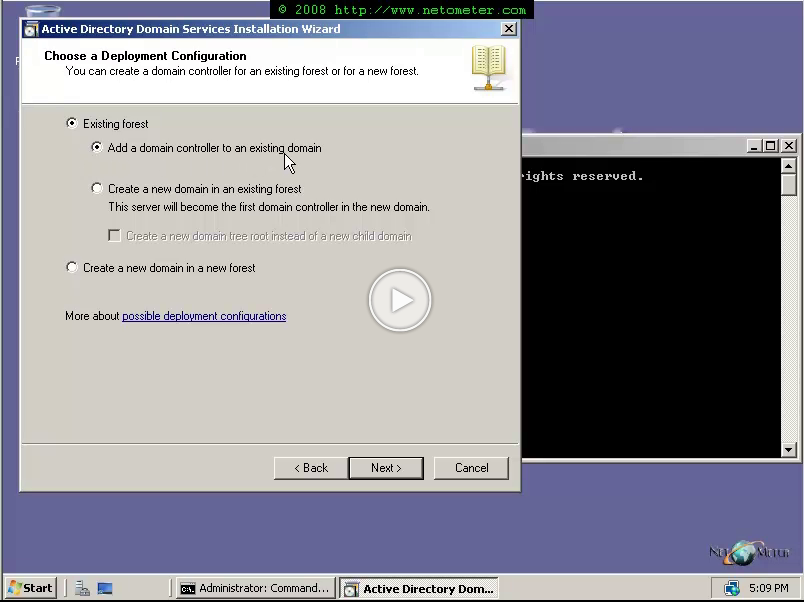
In this Screencast, we will demonstrate the installation of a Windows Server 2008 Read Only Domain Controller (RODC). Before you proceed with the installation of an RODC in your network, you have to make sure that it covers certain requirements. Here is a brief overview:
– PDC Emulator – the DC holding the PDC FSMO in the domain where you intend to install RODC must be running Windows Server 2008.
– Global Catalog – you need to have a GC running Windows Server 2008.
– Domain Functional Level must be at least Windows Server 2003
– Forest Functional Level must be at least Windows Server 2003
– Schema modification – you must run once in the forest adprep /rodcprep
In addition, you must have in mind the following:
– Global Catalog – if there are Outlook clients in the branch office, the RODC should be configured as GC.
– Authentication Requests – the RODC forwards authentication requests to a Global Catalog, running Windows Server 2008, in a site that is closest to the site with the RODC.
– Multiple RODCs – RODCs in the same site DO NOT SHARE information with each other. If the connection to a writable DC is down, there could be inconsistent logon experiences for the users.
We will cover the administration of a RODC in a separate Screencast.
In the following step-by-step video-tutorial, we demonstrate the installation of RODC.
We have demonstrated in one of our previous screencasts –
How to Troubleshoot Metabase Corruption – Exchange 2000/2003, using MetaEdit / Metabase Explorer for Metabase troubleshooting.
In this screencast, we will demonstrate how to backup and restore Metabase in IIS6. We will start with the more difficult scenario, when the IIS services are down, and you have to restore manually Metabase, using history files.
You will see, also, how to backup and restore Metabase, using IIS manager – IIS services have to be Up and Running.
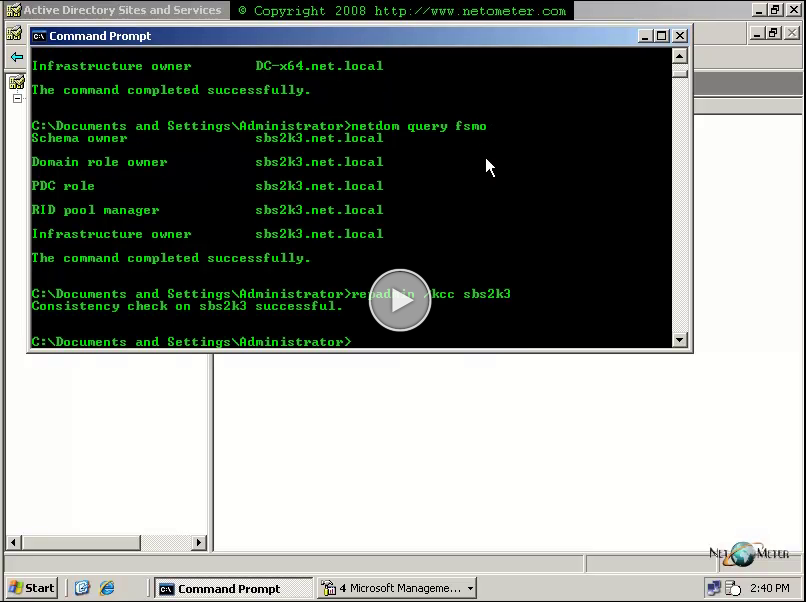
In this Screencast, we will demonstrate how to recover Active Directory from a crashed Domain Controller or an unsuccessful DC demote procedure.
The below Step-by-Step video tutorial outlines the troubleshooting steps that are necessary to perform, both on Windows Server 2003 SP1 and on Small Business Server 2003 SP1 or later.
Installing Active Directory Domain Services Role on a Server Core installation of a Windows Server 2008, requires running the dcpromo command in conjunction with a number of switches/parameters.
As you don’t have the Graphical User Interface for the DCPROMO wizard in Server Core installation, you will have to provide the settings for the DC promotion as parameters.
Another, more comfortable option is, to provide the answers in unattend file (for example unattend.txt), and run DCPROMO using this file.
A third option (and the easiest one) is, to use the GUI for Core Server Configuration, written by Guy Teverovsky – Core Server Configurator . The last version supports running DCPROMO, or you can use it to just generate the unattend.txt file.
If you haven’t configured your server core yet, you will find the following screencast useful :
Initial Configuration Of Windows Server 2008 Core Installation . It shows you how to perform the initial configuration of a Server Core, and join an existing domain.
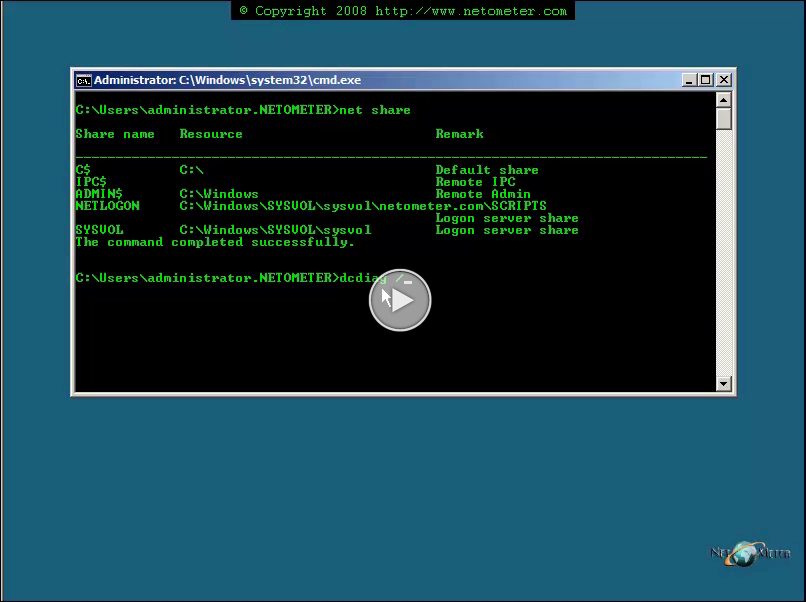
In the following screencast, you will see how to promote a Server Core as a DC, and how to check the result of DCPROMO.
As we have demonstrated in one of our Core Server screencasts –
How to Install Domain Controller Role on Server Core, running DCPROMO requires that you provide the necessary information either by an unattend file or by switches. By default, Core Server does not come with a DCPROMO wizard.
There are cases, when you need to demote a Server Core domain controller. Again, you will have to use the DCPROMO command. It is still a good idea, to take a look at the DCPROMO parameters, as we have demonstrated in our previous screencast. Depending on your needs, you have to decide which of them will be suitable for your scenario.
In a production environment, it is recomended, to pipe DCPROMO results into a log file and examine it at the end.
In the following screencast, you will see how to demote a Server Core, and how to check the result of DCPROMO.
Overview (Diagram 1)
First let’s take a look at the logical network configuration.
There are two NT 4.0 domains with a Two-way trust established between them. There is a PDC, BDC and an Exchange 5.5 server at each domain.
One Exchange 5.5 Organization spans both domains and includes two Exchange 5.5 Sites. We will upgrade Domain -Root by upgrading an NT 4.0 PDC to Windows 2003 and running DCPROMO on it. Though it is going to be easier to upgrade the existing server – PDC/10.10.10.10, we will follow a more elaborate approach.
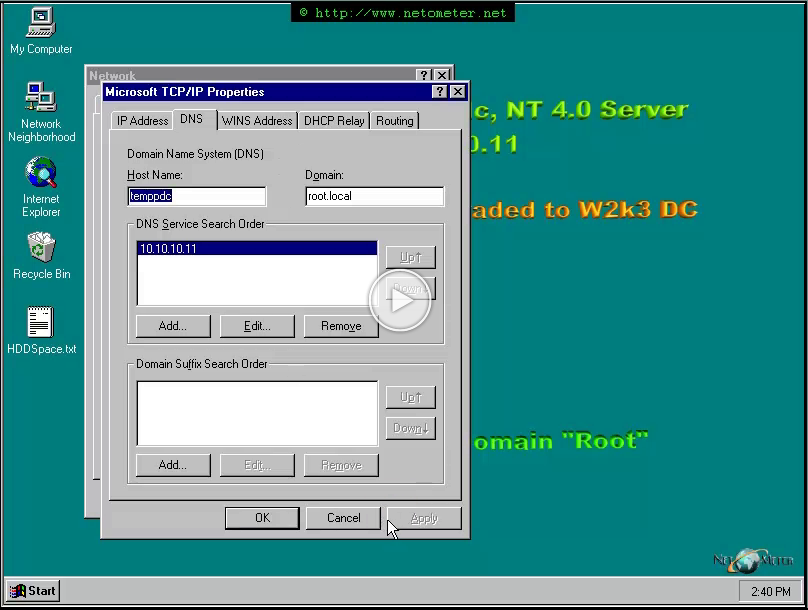
We will introduce a temporary NT 4.0 BDC – TempPDC (Diagram 2 – the PLAN ), promote it to a PDC, and perform the in-place Windows 2003 upgrade on it. That approach is more convenient because we will not interrupt the users, and they will be able to connect to PDC as usual during the upgrade. It is a safer approach too.
We will keep a BDC shut down, and use it to switch back to the original configuration, in case the upgrade fails.
As the name suggests, TempPDC is going to be used temporary as a DC. It is a very good idea to have a clean installed Server 2003 as a main DC in your forest. Therefore we will add a clean installed Server 2003 – RootDC/10.10.10.15, in the domain, run DCPROMO on it and transfer the FSMO roles to it.
Demoting and removing TempPDC will follow, then moving the resources and services from PDC – like WINS and DHCP.
We will demonstrate how to move and convert the existing WINS and DHCP databases and reconfigure the services so everything will be transparent to the users.
Last, we will delete PDC and BDC, and raise Domain and Forest functional levels.
[/vstep]