NetoMeter Blog
Main Site >>
NetoMeter Blog
NetoMeter Blog
Latest Videos
  • Home
  • Windows Server
  • Exchange Server
  • SharePoint
  • Tools
    • ACMEExchange Client
Main Site >>
Wednesday, November 11, 2026
NetoMeter Blog
NetoMeter Blog
  • Main Site >>
  • Home
  • Windows Server
  • Exchange Server
  • SharePoint
  • Latest Videos
  • Upcoming
Main Site >>

©2024 NetoMeter All Right Reserved.
Exchange Server 2010

How to Install Exchange 2010 on Windows Server 2008 R2

by admin March 16, 2010

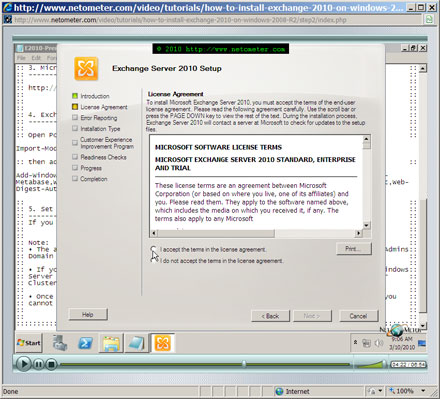
Microsoft Exchange Server 2010 is the seventh major version of the product. Like its predecessor – Exchange Server 2007 it is running on x64 OS platform and offers integration with your phone system. Even though this version is not revolutionary – some specialists consider it as a major Service Pack to Exchange Server 2007, it brings some important changes and a lot of small improvements.

In the following Step-by-Step video tutorial, we will start with the simplest scenario – greenfield installation of Exchange Server 2010 on a Windows Server 2008 R2.
A couple of words about our network configuration – we have three domain controllers, running Windows Server 2003 SP2, Windows Server 2008 and Windows Server 2008 R2. Exchange Server 2010 will be installed on a dedicated Windows 2008 R2 member server.

It is important to run Active Directory Health Check, before you proceed with Exchange Server 2010 installation. You will see how to test and confirm DNS server configuration and health, AD replication and how to generate the necessary reports.
We will go through the process of checking and installing Exchange Server 2010 prerequisites, the actual Exchange installation, and the obligatory post installation Exchange Server validation. The validation includes checking Exchange Setup log, the event viewer messages about MSExchangeSetup, Server roles installation and Exchange Services health status.

How to Install Exchange 2010 on Windows Server 2008 R2

How to Install Exchange 2010 on Windows Server 2008 R2

Stay tuned on NetoMeter – subscribe to NetoMeter RSS.

Dean
0 FacebookTwitterPinterestLinkedinWhatsappTelegramViberEmail
Small Business Server 2008

SharePoint Services in SBS 2008 – Companyweb Overview

by admin February 21, 2010

In this Screencast, we will present an overview of SBS SharePoint Services. You will see that WSS has two types of web sites:
– SharePoint CA (Central Administration) web site that is used for advanced configuration and management.
– User web site, that contains the actual information shared between users.

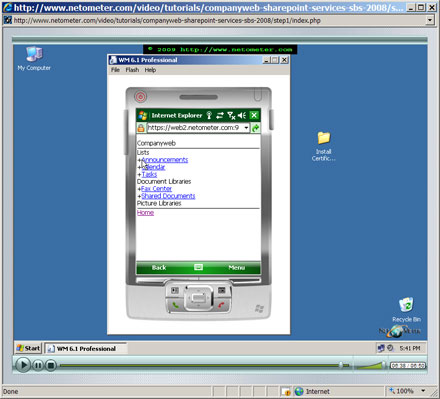
Just in case you haven’t added a trusted/commercial SSL certificate, we will show you how to install the SBS 2008 Certificate Distribution Package on a remote Windows client and mobile device. As SharePoint sites have a mobile version, generated automatically, we will demonstrate how to access it from a mobile device too.
Microsoft has released a free package of 40 ready-to-use SharePoint templates which cover a wide range of business scenarios. They are known as the “Fab40” or the Fabulous Forty, and you can download them from here. You might find the installation of these templates a daunting task (especially if you install them one by one). For your convenience, we have created a script – fab40.bat. As you will see in our Screencast, the installation of Fab40 with this script is easy and fast.
Finally, we demonstrate in our Step-by-Step approach, how to create new sites, using both Server Admin Templates and Site Admin Templates, and how to modify them according to your needs.

SharePoint Services in SBS 2008 – Companyweb Overview (how to install fab40 sharepoint templates)

SharePoint Services in SBS 2008 – Companyweb Overview (how to install fab40 sharepoint templates)

Stay tuned on NetoMeter – subscribe to NetoMeter RSS.

Dean

0 FacebookTwitterPinterestLinkedinWhatsappTelegramViberEmail
Small Business Server 2008

How to Join Windows 7 Client to SBS 2008 Domain (Installing SBS Update Rollup 3)

by admin January 11, 2010

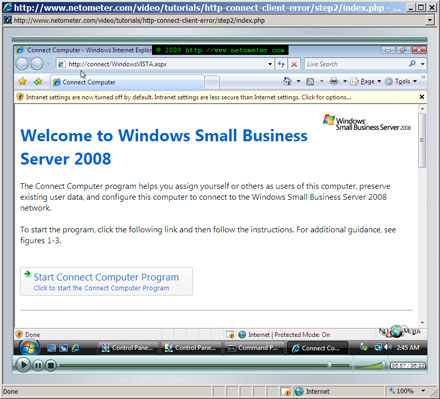
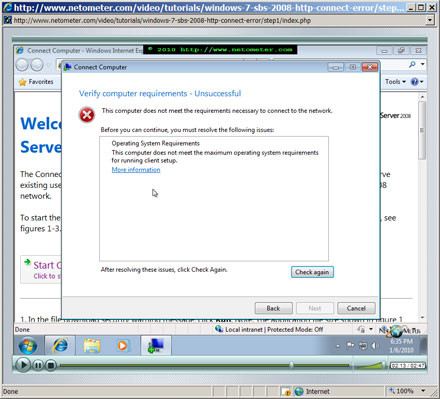
Adding a Windows 7 client to Small Business Server 2008 network is a trivial task and probably the easiest way to do this is to use http://connect in Internet Explorer. You might get the infamous error “This computer does not meet the maximum operating system requirements for running client setup”, if the SBS server is not updated with “SBS 2008 Update Rollup 3 – SBS2008-KB969121-x64-ENU.msp”.

In the following Step-by-Step video tutorial, we will demonstrate two ways to solve this issue.
First, we will show you an useful way to find, download and install separate update packages which are normally available only through Microsoft Update. As you can expect, the demonstration will be done with the rollup 3 package – SBS2008-KB969121-x64-ENU.msp.
In addition, we will demonstrate the standard approach – deploying the package through Windows Software Update Services on SBS 2008.

How to Upgrade to Windows Server 2008 Hyper-V RTM

Installing SBS 2008 Update Rollup 3 – SBS2008-KB969121-x64-ENU.msp

Stay tuned on NetoMeter – subscribe to NetoMeter RSS.

Dean
0 FacebookTwitterPinterestLinkedinWhatsappTelegramViberEmail
Exchange Server 2007Exchange Server 2010Windows Server 2008

How to Request and Install Exchange 2007 SAN (Multiple Domain) Certificate from Microsoft Stand-alone Certification Authority

by admin October 26, 2009

Installing and managing SSL certificates is one of the important tasks which every Administrator or Network Engineer sooner or later has to deal with.
We have published a series of Screencasts, trying to cover the most popular scenarios which you might normally meet in real life. Here are some of them:

– How to Install a Single Name GoDaddy SSL Certificate in Exchange 2007
– How to Renew (Replace) Self-Signed SSL Certificate in Exchange 2007
– IIS7 – How to Install GoDaddy SSL Certificate
– How to Install Self-signed Certificate – IIS7, Windows Server 2008
– How to Install Self-signed Certificate on a Mobile Device
– How to Add GoDaddy SSL Certificate in SBS 2008
– How to Install a Self Signed Certificate, Using SelfSSL.exe
– How to Export Self-Issued (Exchange 2007) Certificate to a File and Install it on a Mobile Device
– How to Install GoDaddy Multiple Domain (UCC) SSL Certificate in Exchange Server 2007

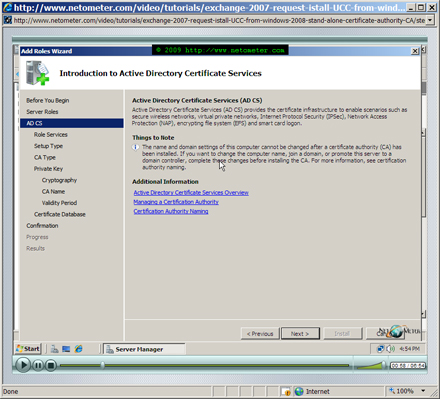
In the following Step-by-Step video tutorial, you will see how to request and install Exchange 2007 Multiple Domain (SAN/UCC) certificate from a Stand-alone Microsoft CA, running on Windows Server 2008.

As usually, we will stick to our Step-by-Step approach and we will start with the installation and fine tuning of Windows Server 2008 Stand-alone CA.

How to Request and Install Exchange 2007 SAN (Multiple Domain) Certificate from Microsoft Stand-alone Certification Authority

Stay tuned on NetoMeter – subscribe to NetoMeter RSS.

Dean

0 FacebookTwitterPinterestLinkedinWhatsappTelegramViberEmail
Exchange Server 2007Exchange Server 2010

How to Install Exchange 2007 Edge Transport Server on Windows Server 2008

by admin August 15, 2009

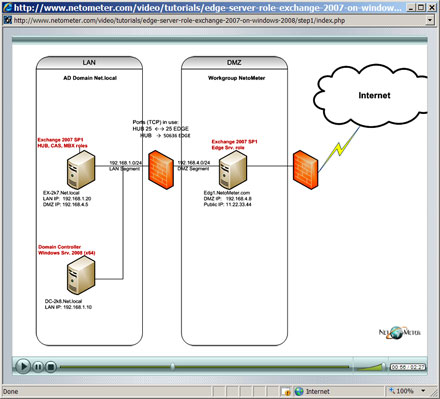
Exchange Server 2007 includes five roles – Mailbox, Client Access, Hub Transport, Unified Messaging and Edge Transport Server Role.
In this Step-by-Step Screencast, we will demonstrate the installation and configuration of the Edge Transport Server Role. The primary responsibility of the Edge Server is to function as an SMTP gateway and protect your messaging system from viruses and spam.

It is important to point out that:
– The Edge server checks only SMTP traffic – all inbound and outbound e-mails for your organization should be flowing through it.
– You cannot use the Edge server for OWA (Outlook Web Access), Outlook Anywhere, POP3, IMAP access.
– You cannot install any other Exchange Role on and Edge Transport Server – as you can see in the video, once you check the Edge server role box, all other roles are grayed out.
– The Edge server should be installed in DMZ as a workgroup machine – it is not a member of your internal Active Directory domain.
– The MX record for your domain(s) should be pointing to Edge Server’s public IP – all inbound traffic should be flowing through it.
– The Edge server uses AD LDS (Active Directory Lightweight Directory Services) when installed on Windows Server 2008, or ADAM (Active Directory Application Mode) – when installed on Windows Server 2003.

In the following Step-by-Step video tutorial, you will see the installation and initial synchronization of Edge Transport server on Windows 2008 OS, in a DMZ.

How to Install Exchange 2007 Edge Transport Server on Windows Server 2008

Stay tuned on NetoMeter – subscribe to NetoMeter RSS.

Dean
0 FacebookTwitterPinterestLinkedinWhatsappTelegramViberEmail
Exchange Server 2007Exchange Server 2010

How to Set OWA as the Default Web Page in IIS7, Exchange Server 2007

by admin July 20, 2009

We have already demonstrated how to configure OWA (Outlook Web Access) as the default web page in IIS6 / Exchange 2003:
How to Configure OWA as the Default Web Page

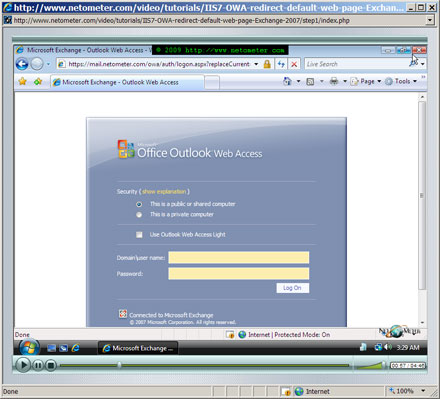
Now, we would like to demonstrate a similar Screencast about Exchange 2007 on Windows Server 2008 scenario.
Instead of configuring a redirection on the Default Web Site, and removing the inherited redirection from the included directories (which might be quite tedious and especially difficult for the Exchange Virtual Directories), we offer a much simpler and elegant approach.

In the following Step-by-Step video tutorial, you will see how to configure OWA as the Default Web Page in IIS7, Exchange Server 2007.

How to Configure OWA as the Default Web Page in IIS7, Exchange Server 2007

Stay tuned on NetoMeter – subscribe to NetoMeter RSS.

Dean

0 FacebookTwitterPinterestLinkedinWhatsappTelegramViberEmail
Small Business Server 2008

Common Problems when Connecting Computers to SBS 2008 Network

by admin July 9, 2009

In the following Step-by-Step video tutorial, we will outline the most common problems which you might encounter when connecting clients to a Small Business Server 2008 Domain.

We start with an overview of SBS 2008 configuration and DHCP server settings. Then, we will discuss the problems with static IP clients, and finally will show you how to resolve problems with DHCP clients.

Most Common Problems when Connecting Computers to SBS 2008 Network (Connect Computer Error)

Stay tuned on NetoMeter – subscribe to NetoMeter RSS.

Dean
0 FacebookTwitterPinterestLinkedinWhatsappTelegramViberEmail
Exchange Server 2007Exchange Server 2010

How to Add a Disclaimer in Exchange Server 2007

by admin June 1, 2009

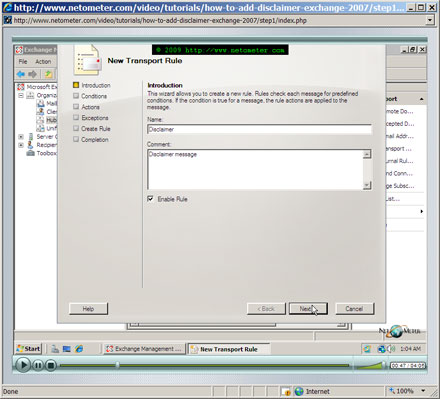
Adding a disclaimer can be helpful if the users send confidential or sensitive information and you want to protect the company and the user in case the e-mail is accidentally sent to the wrong recipient.

As you will see in our Step-by-Step video tutorial , configuring a disclaimer in Exchange Server 2007 is easy and you have a lot of options to modify and fine-tune its behavior.

How to Add a Disclaimer in Exchange Server 2007

Stay tuned on NetoMeter – subscribe to NetoMeter RSS.

Dean

0 FacebookTwitterPinterestLinkedinWhatsappTelegramViberEmail
Exchange Server 2007Exchange Server 2010

How to Renew/Replace Self-Signed SSL Certificate in Exchange Server 2007

by admin May 22, 2009

You might find this Screencast helpful, if you are in the following situation:
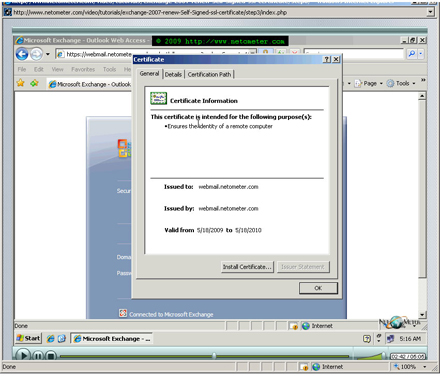
– The Self-Signed certificate, generated by Exchange 2007 installation has expired and you are getting Event ID: 12014 and 12015 in the Event log, plus the complaints of Outlook 2007 users about the security alert “The security certificate has expired or is not yet valid”.
– You want to enable and configure Outlook Anywhere, without purchasing a commercial multiple domain certificate.
– You want to get rid of the annoying security pop-up warning which OWA (Outlook Web Access) users are getting.

You have the following options:
– Generate a new Self-Signed certificate using Exchange Management Shell and replace the old one – Step2 in this Screencast
– Install and configure Windows CA (Certificate Authority), and request a multiple domain SSL certificate from it – we will demonstrate this scenario, in details in a separate Screencast.
– Purchase and install a commercial SSL certificate – this is already covered in details in our Exchange 2007 Screencast series.

In the following  Step-by-Step video tutorial, we demonstrate how to generate a new Self-Signed certificate in Exchange Server 2007 which includes all the necessary names in it. You can also see how to enable the SSL certificate for the Exchange services and remove the old one.

For your convenience, we provide the text file with the shell commands, used in the tutorial here.

How to Renew (Replace) Self-Signed SSL Certificate in Exchange Server 2007

Stay tuned on NetoMeter – subscribe to NetoMeter RSS.

Dean
0 FacebookTwitterPinterestLinkedinWhatsappTelegramViberEmail
Windows Server 2008

How to Configure and Schedule Backup Jobs and Create Custom Scheduled Jobs with Windows Task Scheduler

by admin April 6, 2009

In a series of Screencasts we will demonstrate the capabilities of Windows Server Backup. This is a totally new backup technology based on block-level volume image based solution. It allows you to perform extremely fast server recovery. In addition, you will find that restoring from backup to a different hardware (something which the administrators feared in the past) is not only possible, but amazingly easy too. If you were planning to duplicate a production server in a test network or to a virtual machine, you will be able to see a demonstration in one of our Screencasts.

Our goal is to demonstrate what you can do with Windows Server Backup and help you to rethink and plan better the way you backup your systems.

Windows Server Backup is a disk-to-disk backup solution – it does not support backing up to tapes. You can create backup images on the following backup targets :
– Direct attached disk volumes
– External USB drives
– Network Shares
– Recordable DVDs

The differences and specific limitations for each backup target will be a topic for a separate Screencast.

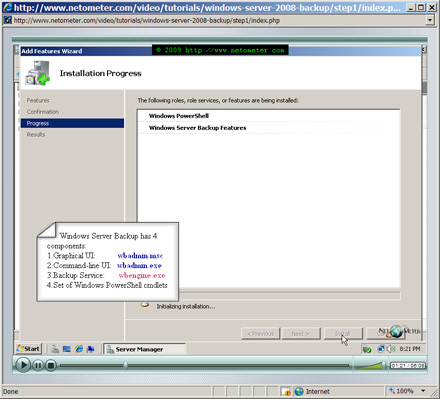
It is important to keep in mind that Windows Server Backup has four components:
– Backup Management Console (WBADMIN.MSC) – the GUI
– Command-line user interface (WBADMIN.EXE)
– Backup Service (WBENGINE.EXE) – it is running the jobs which you create
– Set of Powershell Cmdlets

This client-service structure allows you to configure, monitor, and manage backup jobs remotely. One of the problems which you might encounter when trying to manage backup jobs remotely is how to modify the firewall configuration of the managed remote server.

In the following Step-by-Step video tutorial, we will show you how to install Windows Server Backup, how to optimize backup performance, and how to create and test one-time and scheduled backup jobs. You will be able to see how to create more complex custom backup jobs by using the Windows Task Scheduler and the Windows Backup command line interface. You can download the text file with the commands used in the Screencast from here.
How to Configure and Schedule Backup Jobs and Create Custom Scheduled Jobs with Windows Task Scheduler

Stay tuned on NetoMeter – subscribe to NetoMeter RSS.

Dean

0 FacebookTwitterPinterestLinkedinWhatsappTelegramViberEmail
Newer Posts
Older Posts
November 2026
M T W T F S S
 1
2345678
9101112131415
16171819202122
23242526272829
30  
« Nov    

NetoMeter Blog

  • Video Updates
  • Upcoming Videos
  • Community Chatrooms
  • Community Forum
Facebook Twitter Rss Envelope

Useful Links

    • Contact Us
    • Collaboration
    • Adverstising
    • Privacy Policy
    • Feedback
    • Terms of Use
    • Help & Support
    • News Covering
    • Trending Now

Edtior's Picks

ACMEExchange Let’s Encrypt Client: How to Install a LE Certificate in Exchange Server
Coming Soon: How to Migrate File Servers to Server 2022
Screencast (Part 2): How to Upgrade from Exchange 2013 to Exchange 2019

Latest Articles

ACMEExchange Let’s Encrypt Client: How to Install a LE Certificate in Exchange Server
Coming Soon: How to Migrate File Servers to Server 2022
Screencast (Part 2): How to Upgrade from Exchange 2013 to Exchange 2019
Screencast: How to Upgrade from Exchange 2013 to Exchange 2019
NetoMeter Blog
  • Home
  • Windows Server
  • Exchange Server
  • SharePoint
  • Tools
    • ACMEExchange Client
NetoMeter Blog
  • Main Site >>
  • Home
  • Windows Server
  • Exchange Server
  • SharePoint
  • Latest Videos
  • Upcoming
©2024 NetoMeter All Right Reserved.