NetoMeter Blog
Main Site >>
NetoMeter Blog
NetoMeter Blog
Latest Videos
  • Home
  • Windows Server
  • Exchange Server
  • SharePoint
  • Tools
    • ACMEExchange Client
Main Site >>
Thursday, November 12, 2026
NetoMeter Blog
NetoMeter Blog
  • Main Site >>
  • Home
  • Windows Server
  • Exchange Server
  • SharePoint
  • Latest Videos
  • Upcoming
Main Site >>

©2024 NetoMeter All Right Reserved.
Exchange Server 2007Exchange Server 2010

How to Change SMTP Banner in Exchange Server 2007

by admin March 12, 2009

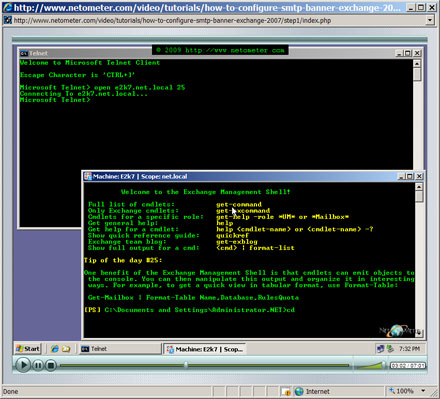
The SMTP banner is the message which the remote mail servers receive when establishing an SMTP connection to a receive connector on Exchange Server 2007. By default the initial message has the following format :
220 ExchangeInternalName Microsoft ESMTP MAIL service ready at Date-Hour-Time

Disclosing the internal Active Directory name and the type of the mail server to the outside world is definitely not a good idea, from security point of view.

In the following Step-by-Step video tutorial, we will demonstrate how to configure the SMTP banner in Exchange Server 2007 SP1.

How to Change SMTP Banner in Exchange Server 2007

Stay tuned on NetoMeter – subscribe to NetoMeter RSS.

Dean
0 FacebookTwitterPinterestLinkedinWhatsappTelegramViberEmail
Exchange Server 2007Exchange Server 2010

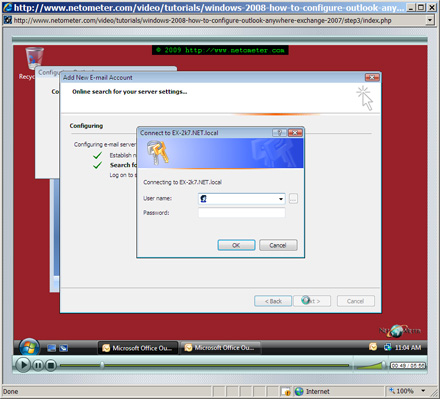
How to Configure Outlook Anywhere in Exchange Server 2007 (on Windows Server 2003)

by admin March 11, 2009

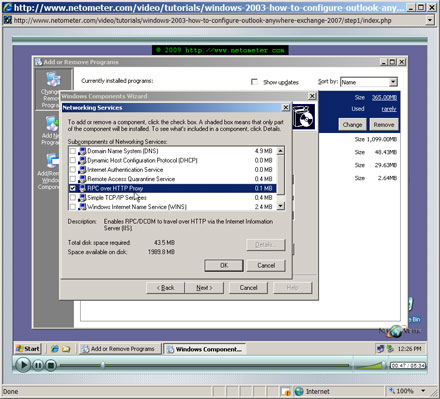
We have already demonstrated How to Configure Outlook Anywhere in Exchange Server 2007, running on Windows Server 2008. We got requests about publishing a Step-by-Step Screencast about configuring Outlook Anywhere when Exchange 2007 is running on a Windows Server 2003.

In the following Step-by-Step video tutorial, we are using a single Exchange 2007 on Windows Server 2003 R2 scenario. In addition, we have a multiple domain (UCC) SSL certificate installed.

How to Configure Outlook Anywhere in Exchange Server 2007 (on Windows Server 2003)

Stay tuned on NetoMeter – subscribe to NetoMeter RSS.

Dean

0 FacebookTwitterPinterestLinkedinWhatsappTelegramViberEmail
Exchange Server 2007Exchange Server 2010

How to Configure Premium (per-Recipient) Journaling in Exchange Server 2007 SP1

by admin March 5, 2009

We have already demonstrated how to configure Standard Journaling in Exchange Server 2007. It is enabled per-Mailbox Database and affects all mailboxes residing on that database.

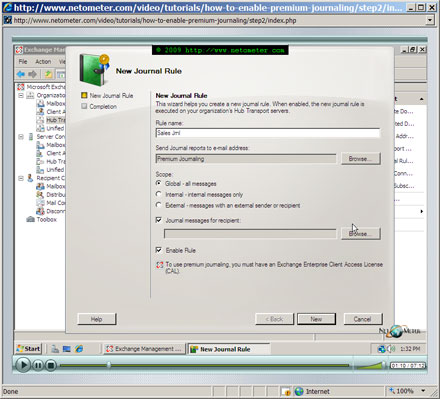
Exchange Server 2007 offers a more advanced form of Journaling – Premium Journaling. It allows you a far more granular approach when selecting the scope of the journaling process. You can target an Internal scope, External scope, Global scope, and Specific Journal Recipients, as you will see in the demonstration bellow.

In the following Step-by-Step video tutorial, we will show you how to configure Premium Journaling for all messages sent to/from the members of a distribution group.

How to Configure Premium (per-Recipient) Journaling in Exchange Server 2007 SP1

Stay tuned on NetoMeter – subscribe to NetoMeter RSS.

Dean
0 FacebookTwitterPinterestLinkedinWhatsappTelegramViberEmail
Exchange Server 2007Exchange Server 2010

How to Configure Standard (Per-Mailbox Database) Journaling in Exchange Server 2007 SP1

by admin March 3, 2009

Exchange journaling is often required for the purposes of regulatory compliance, data retention etc.
Exchange Server 2007 supports envelope journaling – as you can see in the video bellow, the original message is wrapped in a journaling envelope. This allows you to see the sender and all recipients, including BCC recipients and recipients in distribution lists.

In addition, you can choose between two types of journaling in Exchange Server 2007 -standard and premium.

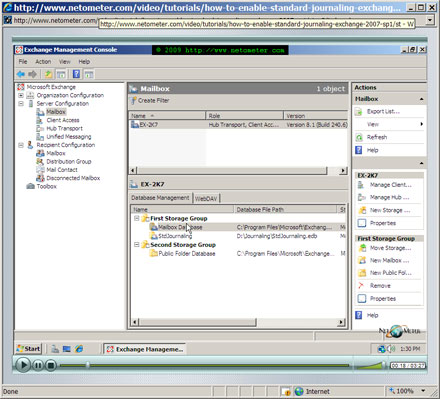
Standard journaling (the so called per-Mailbox journaling) is enabled per mailbox database and all messages sent to/from addresses on that database are journaled. As you can see in our demo, the destination (journal) mailbox should reside on a database which is not being journaled.

Premium journaling can target an Internal scope, External scope, Global scope and specific Journal recepients and we will demonstrate it in a separate Screencast.

In the following Step-by-Step video tutorial, we demonstrate  how to configure Standard (per-Mailbox) Journaling to a trusted (locked down) mailbox in Exchange Server 2007 SP1.

How to Configure Standard (Per-Mailbox Database) Journaling in Exchange Server 2007 SP1

Stay tuned on NetoMeter – subscribe to NetoMeter RSS.

Dean

0 FacebookTwitterPinterestLinkedinWhatsappTelegramViberEmail
Exchange Server 2007Exchange Server 2010

How to Configure Maximum Message Size in OWA, Exchange Server 2007

by admin February 26, 2009

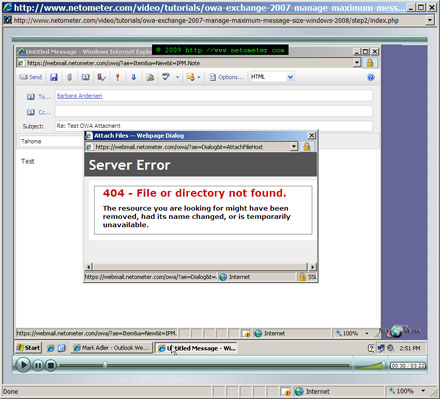
In the following Step-by-Step video tutorial, you will see  how to configure the maximum message size limit in Outlook Web Access (OWA) by modifying the maxRequestLength parameter in web.config file.
If the maximum message size that can be sent from a mailbox exceeds the maxRequestLength, you may get the following errors in OWA:
– The attachment you are trying to upload exceeds the maximum size limit for attachments allowed by your organization. For more information, contact technical support for your organization.
– The files … were not attached because they exceed the maximum size limit of … (MB) for attachments.
– This message could not be sent because it exceeds the maximum size allowed.

In addition, if your Exchange 2007 server is running on a Windows Server 2008, you have to configure Outlook Web Access to allow content that is equal to the size of the maximum message size. Failing to do this will result in the following errors, when you use OWA to send a large attachment :
– Server Error 404 – File or directory not found. The resource you are looking for might have been removed, had its name changed, or is temporarily unavailable.
– Server Error in Application DEFAULT WEB SITE/OWA. HTTP Error 404.13 – Not Found. The request filtering module is configured to deny request that exceeds the request content length.

In this Screencast, we are configuring the maximum message size in OWA on an Exchange server 2007 running on Windows Server 2008.

How to Configure Maximum Message Size in OWA, Exchange Server 2007

Stay tuned on NetoMeter – subscribe to NetoMeter RSS.

Dean
0 FacebookTwitterPinterestLinkedinWhatsappTelegramViberEmail
Exchange Server 2007Exchange Server 2010

How to Configure Message Size Limits in Exchange Server 2007 SP1

by admin February 25, 2009

Setting and managing the message size limits which are applied to the individual messages traversing your organization is an important part of the successful implementation of Exchange Server 2007 infrastructure.
In the following Step-by-Step video tutorial, we demonstrate the different scopes of message size limits which you can configure in Exchange Server 2007 SP1. There are several important improvements which SP1 added regarding the message size limits implementation. One of them is the option to manage Message size limits through the GUI – the Exchange Management Console. All our examples are demonstrated both by using the Exchange Management Console and the Exchange Management Shell.

We also pay special attention to the Order of precedence for Message Size limits. You can download the text file with the different scenarios for Order of Precedence for Message Size limits from here. For your convenience, we provide the list of all Exchange Management Shell commands used in the demo here.

How to Configure Message Size Limits in Exchange Server 2007 SP1

Stay tuned on NetoMeter – subscribe to NetoMeter RSS.

Dean

0 FacebookTwitterPinterestLinkedinWhatsappTelegramViberEmail
Exchange Server 2007Exchange Server 2010

How to Configure Outlook Anywhere (RPC over HTTP) in Exchange Server 2007

by admin February 11, 2009

Outlook Anywhere is one of the very popular features in Exchange Server 2007. It allows Outlook 2007 and Outlook 2003 clients to connect to Exchange Server over the Internet by using RPC (Remote Procedure Calls) over HTTP.

The main benefits from Outlook Anywhere are :
– Remote access to Exchange Server over the Internet
– You can use the same URL that you use for Outlook Web Access (and Microsoft Exchange ActiveSync)
– You can use the same SSL certificate implemented for Outlook Web Access and Exchange ActiveSync
– Unauthenticated requests from Outlook cannot access Exchange Server
– No need for VPN (Virtual Private Network) to access Exchange Server across the Internet.

It is important to note, that the easiest scenario is when you are using a Multiple Domain (UCC) SSL certificate on your Exchange Server (installing UCC in Exchange 2007 is demonstrated here) and we start with it. The scenarios, when you are using a Single Name SSL Certificate (How to Install a Single Name GoDaddy SSL Certificate in Exchange Server 2007) and Self Signed SSL certificate require additional steps and will be demonstrated in separate Screencasts.

In the following Step-by-Step video tutorial, you will see how to configure Outlook Anywhere (RPC over HTTP) in Exchange Server 2007. We will also demonstrate how to configure Outlook 2007 and Outlook 2003 clients.

How to Configure Outlook Anywhere (RPC over HTTP) in Exchange Server 2007

Stay tuned on NetoMeter – subscribe to NetoMeter RSS.

Dean
0 FacebookTwitterPinterestLinkedinWhatsappTelegramViberEmail
Free ScreencastsSmall Business Server 2008

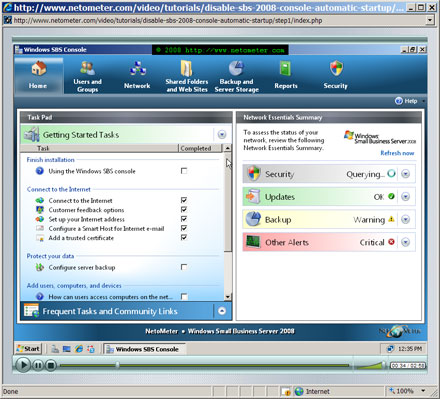
How to Disable Auto Startup of SBS Console in Small Business Server 2008

by admin January 28, 2009

One of the first things that you notice after the installation of Small Business Server 2008 finishes is the SBS console. It starts automatically after you logon, and presents you with the list of getting started tasks.

This is extremely helpful in the beginning when you go through the process of initial configuration of the server. At some point later, you might find this behavior annoying. No matter how hard you are looking for an option to disable the auto startup of the SBS console, you will not find one in it. Checking the startup folder or the usual places for starting a program also will not give you a clue. You will be surprised to find out that the SBS console is started by the Task Scheduler.

In the following Step-by-Step video tutorial, you will see how to modify the default automatic startup behavior of the SBS console.

How to Disable Auto Startup of SBS Console in Small Business Server 2008

Stay tuned on NetoMeter – subscribe to NetoMeter RSS.

Dean

0 FacebookTwitterPinterestLinkedinWhatsappTelegramViberEmail
Exchange Server 2007Exchange Server 2010

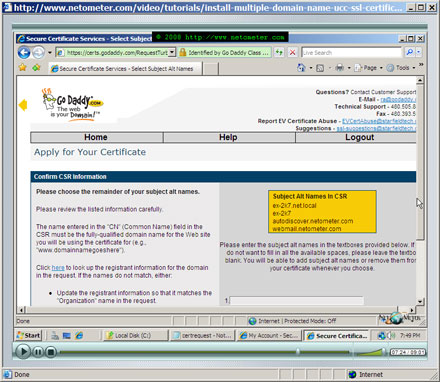
How to Install GoDaddy Multiple Domain (UCC) SSL Certificate in Exchange Server 2007

by admin January 27, 2009

The installation process of Exchange Server 2007 ( Screencast: How to Install Exchange 2007 SP1 ) generates and installs a temporary Self Signed Certificate which allows you to start and use Exchange Server 2007 immediately. This certificate is provided as a temporary solution and Microsoft recommends that it is replaced with a Commercial Certificate. Using a SelfSigned certificate poses a security risk to your users. Also, you cannot use ActiveSync and Outlook Anywhere with this certificate. In addition, the remote users get a Pop-Up window, warning them about the certificate when opening Outlook Web Access.

In the following Step-by-Step video tutorial, we will demonstrate the installation and configuration of a GoDaddy Multiple Domain (UCC) SSL Certificate in Exchange Server 2007.
In our demo, we are using a Single Exchange Server 2007 scenario. You can download the text file with Exchange Management Shell commands, here.

How to Install GoDaddy Multiple=

Stay tuned on NetoMeter – subscribe to NetoMeter RSS.

Dean
0 FacebookTwitterPinterestLinkedinWhatsappTelegramViberEmail
Small Business Server 2008

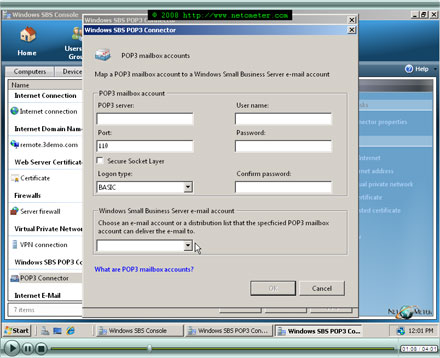
How to Configure POP3 Connector in SBS 2008

by admin December 29, 2008

Small Business Server 2008 comes with a POP3 connector even though it is not listed in the Getting Started Tasks and it is not configured by default.

You can use the POP3 connector to retrieve e-mails from external POP3 accounts (like accounts at your ISP or GMail), to pre-selected Exchange Server Users or Distribution Groups. When you configure a POP3 connector in SBS 2008, keep in mind the following:

● When a user replies to an e-mail delivered through the POP3 connector, the message is sent from the local Exchange Server (or through a SmartHost – how to configure a Smart Host in SBS 2008). Windows SBS 2008 does not route the reply through the original POP3 e-mail server.
● You can choose between the following types of authentication – BASIC (the logon credentials are sent unencrypted – in clear text), SPA (Secure Password Authentication), and APOP(Authenticated Post Office Protocol).
● You can use SSL (Secure Socket Layer – normally over port 995), if the POP3 provider supports this option. In that case, using BASIC authentication is fine, and we are demonstrating this scenario bellow.

In the following Step-by-Step video tutorial, you will see how to configure a POP3 connector in Small Business Server 2008.

How to Configure POP3 Connector in SBS 2008

Stay tuned on NetoMeter – subscribe to NetoMeter RSS.

Dean

0 FacebookTwitterPinterestLinkedinWhatsappTelegramViberEmail
Newer Posts
Older Posts
November 2026
M T W T F S S
 1
2345678
9101112131415
16171819202122
23242526272829
30  
« Nov    

NetoMeter Blog

  • Video Updates
  • Upcoming Videos
  • Community Chatrooms
  • Community Forum
Facebook Twitter Rss Envelope

Useful Links

    • Contact Us
    • Collaboration
    • Adverstising
    • Privacy Policy
    • Feedback
    • Terms of Use
    • Help & Support
    • News Covering
    • Trending Now

Edtior's Picks

ACMEExchange Let’s Encrypt Client: How to Install a LE Certificate in Exchange Server
Coming Soon: How to Migrate File Servers to Server 2022
Screencast (Part 2): How to Upgrade from Exchange 2013 to Exchange 2019

Latest Articles

ACMEExchange Let’s Encrypt Client: How to Install a LE Certificate in Exchange Server
Coming Soon: How to Migrate File Servers to Server 2022
Screencast (Part 2): How to Upgrade from Exchange 2013 to Exchange 2019
Screencast: How to Upgrade from Exchange 2013 to Exchange 2019
NetoMeter Blog
  • Home
  • Windows Server
  • Exchange Server
  • SharePoint
  • Tools
    • ACMEExchange Client
NetoMeter Blog
  • Main Site >>
  • Home
  • Windows Server
  • Exchange Server
  • SharePoint
  • Latest Videos
  • Upcoming
©2024 NetoMeter All Right Reserved.