NetoMeter Blog
Main Site >>
NetoMeter Blog
NetoMeter Blog
Latest Videos
  • Home
  • Windows Server
  • Exchange Server
  • SharePoint
  • Tools
    • ACMEExchange Client
Main Site >>
Friday, November 13, 2026
NetoMeter Blog
NetoMeter Blog
  • Main Site >>
  • Home
  • Windows Server
  • Exchange Server
  • SharePoint
  • Latest Videos
  • Upcoming
Main Site >>

©2024 NetoMeter All Right Reserved.
Exchange Server 2007Exchange Server 2010

How to Install a Single Name GoDaddy SSL Certificate in Exchange Server 2007

by admin December 27, 2008

We have already demonstrated the installation of Exchange Server 2007 SP1 in the Step-by-Step Screencast:
How to Install Exchange 2007 SP1 on Windows Server 2008

The installation process generates and installs a temporary Self Signed Certificate which allows you to start and use Exchange Server 2007 immediately. Again, this certificate is provided as a temporary solution and Microsoft recommends that it is replaced with a Commercial Certificate. Using a SelfSigned certificate poses a security risk to your users. Also, you can not use ActiveSync and Outlook Anywhere with this certificate. In addition, the remote users get a Pop-Up window, warning them about the certificate when opening Outlook Web Access.

There are cases when you want to use a Single Name SSL certificate – like the GoDaddy Turbo SSL certificate, in Exchange Server 2007. The reason for this decision could be that you already have purchased such a certificate, the price of the UCC certificates, or simply because you are running a pilot project for testing purposes.

You should be aware of the following when installing a Single Name SSL Certificate on Exchange Server 2007:
● You can not use such a certificate, if you have the Unified Communications role installed
● You have to perform additional configuration steps when you are replacing the Self Signed certificate generated during the Exchange 2007 installation with a Single Name Certificate – in short, this requires modifying the SCP (Service Connection Point) and adjusting the Exchange Web Services URL. If you skip these steps, you will experience problems with Outlook 2007 clients.
● Configuring and using Outlook Anywhere requires additional and extra steps too. To keep things simple and straightforward, we will demonstrate the configuration of Outlook Anywhere with a Single Name SSL certificate in a separate Screencast.

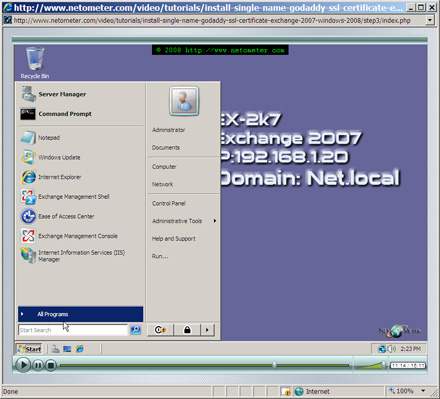
In the following Step-by-Step video tutorial, you will see the installation and configuration of a GoDaddy Single Name SSL Certificate in Exchange Server 2007. We start by submitting a CSR (Certificate Signing Request), then we download and install the certificate, perform the necessary extra steps to make this certificate work fine in Exchange 2007 environment, and finally, we test the certificate.

Install a Single Name GoDaddy SSL Certificate in Exchange 2007

Stay tuned on NetoMeter – subscribe to NetoMeter RSS.

Dean
0 FacebookTwitterPinterestLinkedinWhatsappTelegramViberEmail
Exchange Server 2007Exchange Server 2010

How to Allow Anonymous Relay for a Specific IP Address in Exchange 2007

by admin November 26, 2008

There are cases when you need to allow unauthenticated relaying for specific hosts or network devices in Exchange Server 2007. Typical examples are software packages (like accounting software) or network printers, scanners etc.

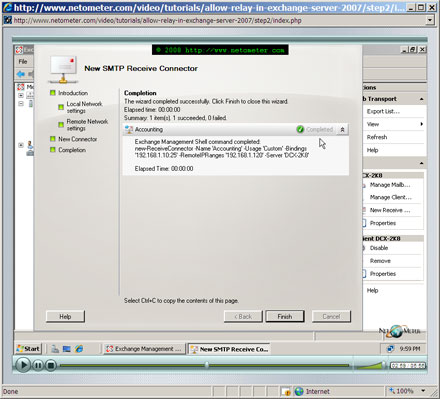
In the following Step-by-Step video tutorial, you will see how to allow anonymous relay on a receive connector for a specific IP address – a host which is running an accounting application.

How to Allow Anonymous Relay for a Specific IP Address in Exchange 2007

Stay tuned on NetoMeter – subscribe to NetoMeter RSS.

Dean

0 FacebookTwitterPinterestLinkedinWhatsappTelegramViberEmail
Small Business Server 2008

How to Change Smart Host port in SBS 2008

by admin November 24, 2008

There are situations when you need to change the default port 25 which is used by the Smart Host. For example, your Smart Host provider might require you to use an alternative port like port 587.

Unfortunately, the Wizard does not provide a way to change the default port 25. If you check the Exchange Management Console, you will not find an option to change the Smart Host port too.

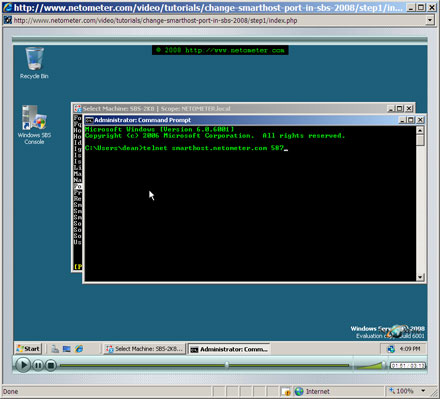
In the following Step-by-Step video tutorial, you will see how to change Smart Host port in Small Business Server 2008.

How to Change Smart Host port in SBS 2008

Stay tuned on NetoMeter – subscribe to NetoMeter RSS.

Dean
0 FacebookTwitterPinterestLinkedinWhatsappTelegramViberEmail
Exchange Server 2003Exchange Server 2010Windows Server 2003

How to Configure RPC over HTTPS in Exchange Server 2003, running on a Domain Controller

by admin November 11, 2008

We have already demonstrated how to configure RPC over HTTPS when Exchange Server and Domain Controller are running on separate machines.

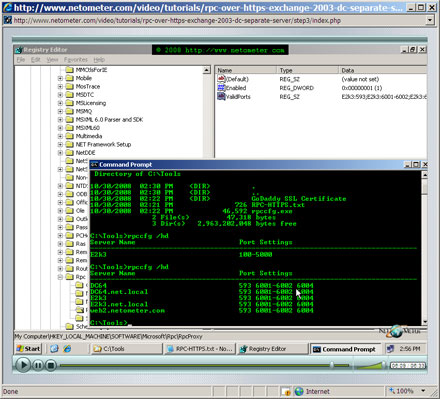
In the following Step-by-Step video tutorial, we will demonstrate another popular scenario – Exchange Server, running on a Domain Controller.
For your convenience you can download the text file, with the registry settings, used in the demo, and the rpccfg.exe utility.

How to Configure RPC over HTTPS in Exchange Server 2003, running on a Domain Controller

Stay tuned on NetoMeter – subscribe to NetoMeter RSS.

Dean

0 FacebookTwitterPinterestLinkedinWhatsappTelegramViberEmail
Exchange Server 2003Exchange Server 2010Windows Server 2003

How to Configure RPC over HTTPS in Exchange Server 2003, SP1 or higher

by admin November 1, 2008

In a series of Screencasts we will cover the different scenarios for configuring RPC over HTTPS for Exchange Server 2003 and Outlook Anywhere for Exchange Server 2007.

In the following Step-by-Step video tutorial, we will demonstrate one of the most popular scenarios, where Exchange Server(s) and Domain Controller(s)/Global Catalog(s) are running on separate machines. There isn’t a front-end Exchange server in this Scenario and again, it is important to note that Exchange Server 2003 is NOT running on a Domain Controller in this demonstration.

For your convenience you can download the text file, with the registry settings used in the demo, and the rpccfg.exe utility.

How to Configure RPC over HTTPS in Exchange Server 2003, SP1 or higher

Stay tuned on NetoMeter – subscribe to NetoMeter RSS.

Dean
0 FacebookTwitterPinterestLinkedinWhatsappTelegramViberEmail
Virtualization

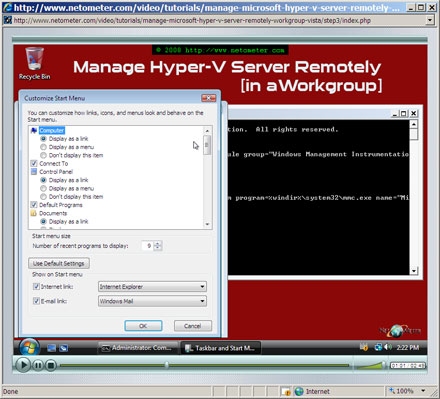
How to Manage Microsoft Hyper-V Server 2008 Remotely from Windows Vista, in Workgroup

by admin October 16, 2008

In this Screencast, we demonstrate how to manage Microsoft Hyper-V Server 2008 remotely in a Workgroup configuration. There are many cases when you will prefer to run the free Hyper-V server as a stand-alone machine or in a workgroup instead of in a domain. When you try to connect and manage remotely the Hyper-V machine, you are getting errors like:
● “You do not have the required permissions to complete this task. Contact the administrator of the authorization policy for this computer”
● “An error occurred while attempting to connect to server. Check that the Virtual Machine Management service is running and that you are authorized to connect to the server”
● “RPC server unavailable. Unable to establish communication between …”

The scenario when you are using and managing Microsoft Hyper-V Server 2008 remotely in a workgroup requires special attention and configuration on both sides – the managed Server and the managing Client.

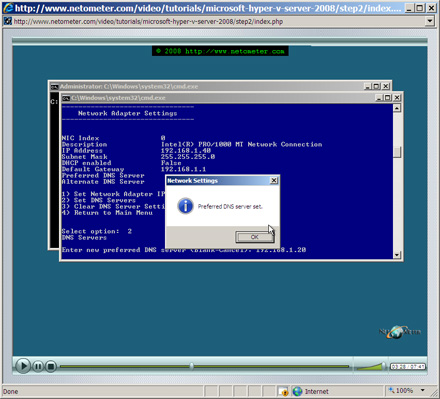
In the following Step-by-Step video tutorial, you will see how to manage remotely a Hyper-V server in a Workgroup environment.

How to Manage Microsoft Hyper-V Server 2008 Remotely from Windows Vista in Workgroup

Stay tuned on NetoMeter – subscribe to NetoMeter RSS.

Dean

0 FacebookTwitterPinterestLinkedinWhatsappTelegramViberEmail
Windows Server 2008

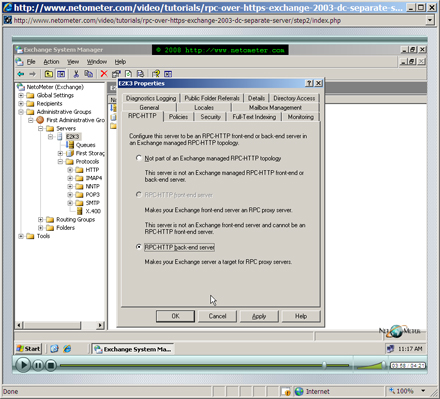
How to Install and Enable Microsoft RSAT (Remote Server Administration Tools) for Windows Vista

by admin October 9, 2008

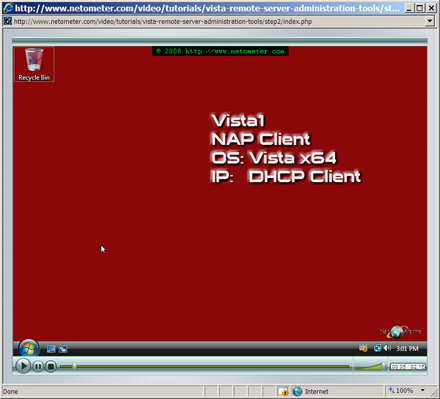
RSAT (Remote Server Administration Tools) is essentially the new version of Windows Server 2003 Administration Tools Pack – Adminpak.msi, for Windows Vista. The package allows you to remotely manage roles and features in Windows Server 2008 from a computer running Windows Vista with SP1. Yes, SP1 for Vista is required by RSAT.

There is a x86 and x64 version of RSAT, so make sure that you download and install the corresponding version for your OS.

In the following Step-by-Step video tutorial, you will see How to Install and Enable Microsoft Remote Server Administration Tools for Windows Vista.

How to Install and Enable Microsoft RSAT Remote Server Administration Tools for Windows Vista

Stay tuned on NetoMeter – subscribe to NetoMeter RSS.

Dean
0 FacebookTwitterPinterestLinkedinWhatsappTelegramViberEmail
Exchange Server 2007Exchange Server 2010

Initial Configuration of Exchange 2007 SP1. Configuring Send Connector, Receive Connector, Accepted Domain, and E-mail Address Policy.

by admin October 9, 2008

We have already demonstrated the installation of Exchange Server 2007 SP1 in the Step-by-Step Screencast:
How to Install Exchange 2007 SP1 on Windows Server 2008
Next, you have to perform Exchange 2007 SP1 initial configuration. You have to go through these steps because out of the box standard Exchange 2007 installation:

● Does not allow you to send e-mails to the Internet.
● Does not allow you to receive e-mails from the Internet – anonymous SMTP connections are dropped, and that’s how most e-mail servers will send e-mails to your Exchange server.
● In addition, the installation process configures a default e-mail address using the Forest root domain name which in most cases is different from the public e-mail domain used by the company.

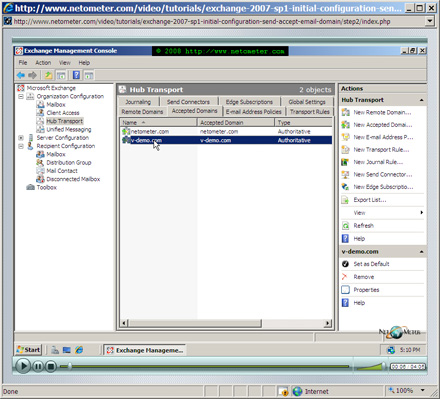
In the following Step-by-Step video tutorial, you will see how to configure Send Connector, Receive Connector, Accepted Domain, and E-mail Address Policy for your Exchange Server 2007 SP1.

How to Configure Exchange server 2007 SP1

Stay tuned on NetoMeter – subscribe to NetoMeter RSS.

Dean

0 FacebookTwitterPinterestLinkedinWhatsappTelegramViberEmail
Virtualization

How to setup the free Microsoft Hyper-V Server 2008

by admin October 3, 2008

Microsoft Hyper-V Server 2008 is a free product available for download from Microsoft Download Center
It is important to note that the product does not require Host Server license. Each Windows guest Virtual Machine which is running on it requires a license, though.

Hyper-V Server requires:
– An x64-based CPU
– Hardware-assisted virtualization (Intel VT or AMD-v)
– Hardware Data Execution Protection (DEP)

In the following Step-by-Step video tutorial, you will see how to setup the free Microsoft Hyper-V Server 2008.

How to setup the free Microsoft Hyper-V Server 2008

Stay tuned on NetoMeter – subscribe to NetoMeter RSS.

Dean
0 FacebookTwitterPinterestLinkedinWhatsappTelegramViberEmail
Exchange Server 2007Exchange Server 2010

How to Export Self-Issued – Exchange 2007, Certificate to a File and Install it on a Mobile Device

by admin September 22, 2008

We have already demonstrated in one of our SBS 2008 Screencasts how to install Small Business Server 2008, Self-Issued SSL Certificate on a Mobile Device.

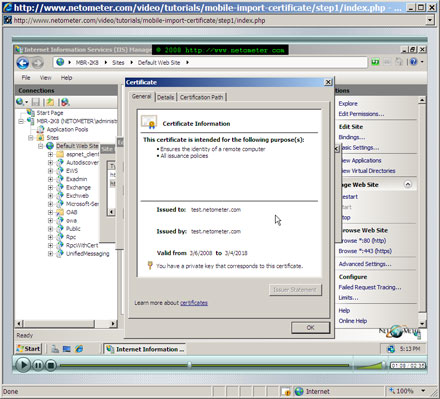
In the following Step-by-Step video tutorial, you will see how to export a Self-Issued SSL certificate in Exchange 2007 server. We will also demonstrate how to configure ActiveSync, and connect the mobile device to the Exchange Server.

How to Export Self-Issued (Exchange 2007) Certificate to a File and Install it on a Mobile Device

Stay tuned on NetoMeter – subscribe to NetoMeter RSS.

Dean

0 FacebookTwitterPinterestLinkedinWhatsappTelegramViberEmail
Newer Posts
Older Posts
November 2026
M T W T F S S
 1
2345678
9101112131415
16171819202122
23242526272829
30  
« Nov    

NetoMeter Blog

  • Video Updates
  • Upcoming Videos
  • Community Chatrooms
  • Community Forum
Facebook Twitter Rss Envelope

Useful Links

    • Contact Us
    • Collaboration
    • Adverstising
    • Privacy Policy
    • Feedback
    • Terms of Use
    • Help & Support
    • News Covering
    • Trending Now

Edtior's Picks

ACMEExchange Let’s Encrypt Client: How to Install a LE Certificate in Exchange Server
Coming Soon: How to Migrate File Servers to Server 2022
Screencast (Part 2): How to Upgrade from Exchange 2013 to Exchange 2019

Latest Articles

ACMEExchange Let’s Encrypt Client: How to Install a LE Certificate in Exchange Server
Coming Soon: How to Migrate File Servers to Server 2022
Screencast (Part 2): How to Upgrade from Exchange 2013 to Exchange 2019
Screencast: How to Upgrade from Exchange 2013 to Exchange 2019
NetoMeter Blog
  • Home
  • Windows Server
  • Exchange Server
  • SharePoint
  • Tools
    • ACMEExchange Client
NetoMeter Blog
  • Main Site >>
  • Home
  • Windows Server
  • Exchange Server
  • SharePoint
  • Latest Videos
  • Upcoming
©2024 NetoMeter All Right Reserved.