NetoMeter Blog
Main Site >>
NetoMeter Blog
NetoMeter Blog
Latest Videos
  • Home
  • Windows Server
  • Exchange Server
  • SharePoint
  • Tools
    • ACMEExchange Client
Main Site >>
Sunday, November 8, 2026
NetoMeter Blog
NetoMeter Blog
  • Main Site >>
  • Home
  • Windows Server
  • Exchange Server
  • SharePoint
  • Latest Videos
  • Upcoming
Main Site >>

©2024 NetoMeter All Right Reserved.
Small Business Server 2008

How to Import Self-Issued Certificate on a Mobile Device – Small Business Server 2008

by admin September 20, 2008

A default installation of Small Business Server 2008 uses a Self-Issued SSL Certificate for the Exchange Server 2007 installation. We have already demonstrated in one of our SBS 2008 Screencasts how to import the Self-Issued certificate on a client machine, and allow normal functionality of Remote Web Workplace.
You have to follow a similar approach before you are able to configure ActiveSync, and connect your mobile device to an Exchange Server which uses Self-Issued SSL certificate.

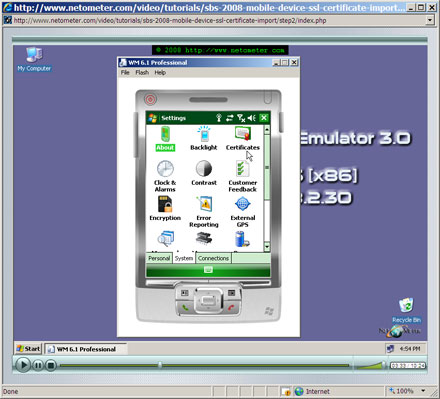
In the following Step-by-Step video tutorial, you will see how to import a Self-Issued SSL certificate on a Mobile Device.

How to Import Self-Issued Certificate in a Mobile Device - Small Business Server 2008

Stay tuned on NetoMeter – subscribe to NetoMeter RSS.

Dean
0 FacebookTwitterPinterestLinkedinWhatsappTelegramViberEmail
Virtualization

How to Install and Configure Mobile Device Emulator

by admin September 16, 2008

There are many cases when you need a Mobile Device Emulator in your testing or troubleshooting process.
A few examples are – Configuring and testing Outlook Mobile Access (OMA in Exchange 2003), ActiveSync and Direct Push Technology (in Exchange 2007), testing newly installed public certificates, importing self generated SSL certificates etc.

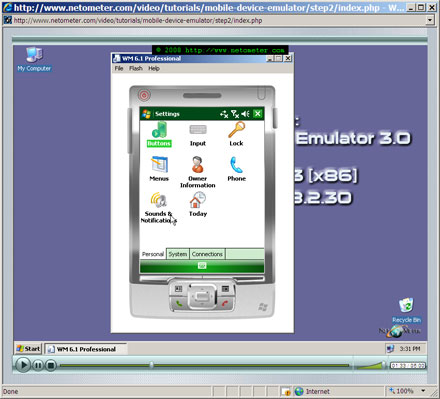
In the following Step-by-Step video tutorial, you will see how to install and configure Microsoft Device Emulator v.3.0.

How to Install and Configure Microsoft (Mobile) Device Emulator

Stay tuned on NetoMeter – subscribe to NetoMeter RSS.

Dean

0 FacebookTwitterPinterestLinkedinWhatsappTelegramViberEmail
Exchange Server 2007Exchange Server 2010

How to Install Exchange 2007 SP1 on Windows Server 2008

by admin August 29, 2008

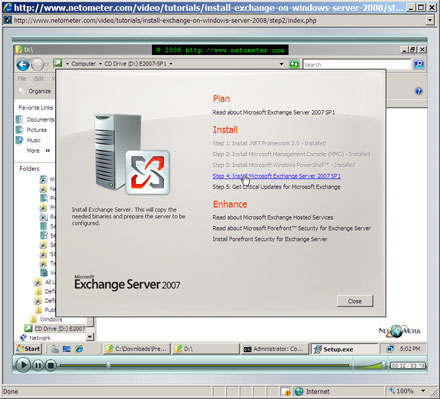
In the following Step-by-Step video tutorial, we will demonstrate the installation of Exchange SP1 on Windows Server 2008. A couple of words about the network configuration in our demo: We will be deploying a new Exchange 2007 organization. Transitioning to Exchange 2007 is going to be demonstrated in a separate Step-by-Step video tutorial. The Domain and Forest functional levels are Windows Server 2008, and we will be installing a x64 version of Exchange 2007. In addition, we will be deploying the so called typical installation – the Exchange Server will host the Hub Transport, Client Access, and Mailbox server roles.

Validating the successful installation is laso part of Exchange 2007 SP1 deployment and it is demonstrated in the last step.

How to Install Exchange 2007 SP1 on Windows Server 2008

Stay tuned on NetoMeter – subscribe to NetoMeter RSS.

Dean
0 FacebookTwitterPinterestLinkedinWhatsappTelegramViberEmail
Virtualization

Screencast: How to Manage Hyper-V RTM on Server Core from Windows Vista

by admin August 22, 2008

In the following Step-by-Step video tutorial, you will see how to check whether Hyper-V is successfully installed on Server Core, and how to manage it from Windows Vista.
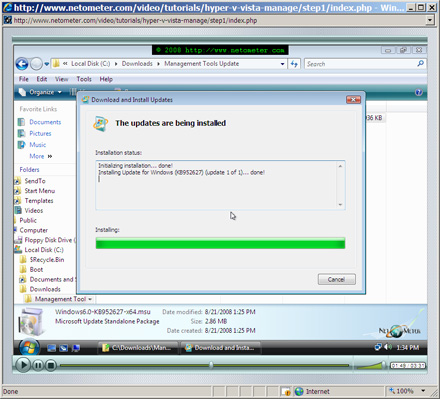
We will be installing the “Hyper-V Remote Management Update for Windows Vista – KB952627”. Note, that it requires SP1 for Windows Vista. Also, there is a different update file for the 32 bit and 64 bit version of the operating system – Download the corresponding file for your OS.

How to Manage Hyper-V RTM on Server Core from Windows Vista

Stay tuned on NetoMeter – subscribe to NetoMeter RSS.

Dean

0 FacebookTwitterPinterestLinkedinWhatsappTelegramViberEmail
Virtualization

Screencast:How to update a Core Server installation to Hyper-v RTM, and how to enable the Hyper-V server role.

by admin August 22, 2008

We have already demonstrated how to install and how to upgrade Hyper-V on a full installation of Windows Server 2008.
Server Core installation of Windows Server 2008 is the best choice for root/host partition, when running Hyper-V. It provides the smallest footprint, and allows you to achieve best performance for your guests/virtual machines.

In the following Step-by-Step video tutorial, you will see how to update a Core Server installation to Hyper-v RTM, and how to enable the Hyper-V server role.

How to Install and Manage Hyper-V RTM on Server Core

Stay tuned on NetoMeter – subscribe to NetoMeter RSS.

Dean
0 FacebookTwitterPinterestLinkedinWhatsappTelegramViberEmail
Exchange Server 2010

Screencast: How to Configure Forms-Based Authentication for Outlook Web Access

by admin August 19, 2008
Enabling Forms-Based Authentication for Outlook Web Access, FBA, provides additional client and security options to the users. It is very easy to enable FBA and this option should be seriously considered. By default FBA requires SSL connection.
You could purchase and install SSL certificate, or follow the instructions in the following screencast
How to Install a Self Signed Certificate for IIS.

In this Step-by-Step video tutorial, you will see how to Configure Forms-Based Authentication for Outlook Web Access.

Screencast: How to Configure Forms-Based Authentication for Outlook Web Access

Stay tuned on NetoMeter – subscribe to NetoMeter RSS.

Dean

0 FacebookTwitterPinterestLinkedinWhatsappTelegramViberEmail
Virtualization

Screencast: How to Upgrade to Windows Server 2008 Hyper-V RTM

by admin August 16, 2008

There are many cases when you have already Hyper-V running on a Windows Server 2008. The first question which you have to answer in such cases is what version of Hyper-V are you running on that server. It could be the Hyper-V Beta (6.0.6001.17101), Hyper-V RC0 (6.0.6001.18004), Hyper-V RC1 (Hyper-V RC1 – 6.0.6001.18010), and of course, there is a chance that you are running Hyper-V RTM version (6.0.6001.18016).

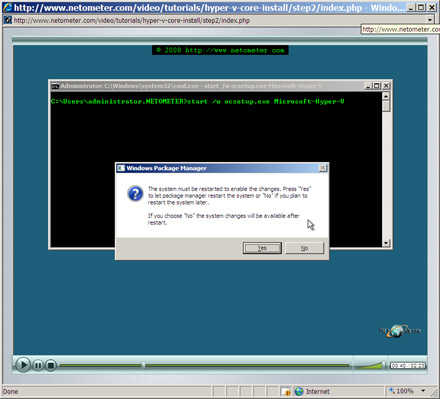
In the following Step-by-Step video tutorial, you will see how to upgrade an existing installation of Hyper-V to Hyper-V RTM version.

How to Upgrade to Windows Server 2008 Hyper-V RTM

 Stay tuned on NetoMeter – subscribe to NetoMeter RSS.

Dean
0 FacebookTwitterPinterestLinkedinWhatsappTelegramViberEmail
Virtualization

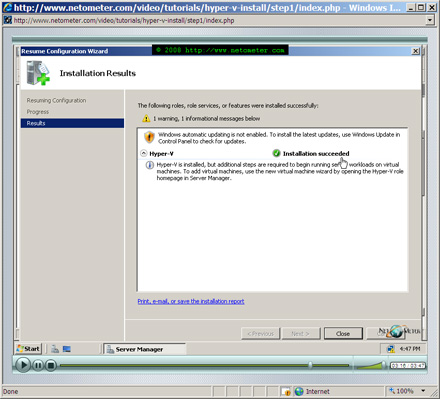
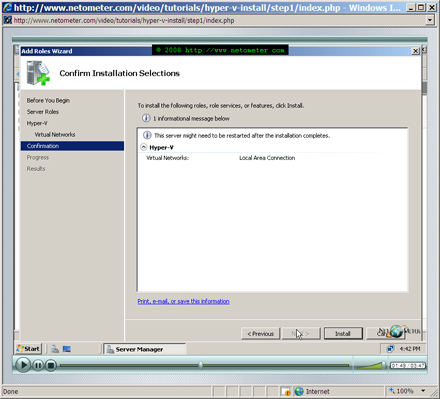
Screencast: How to Install Windows Server 2008 Hyper-V (Enabling Windows Server 2008 Hyper-V Role)

by admin August 14, 2008

Windows Server Hyper-V role is only available for x64 editions of Windows Server 2008. If you are running currently a Beta, RC0 or RC1 version of Hyper-V check our screencast for identifying the current version of Hyper-V and upgrading it to RTM version.
In the following Step-by-Step Video Tutorial, you will see how to install Windows Server 2008 Hyper-V.

How to install Hyper-V, Windows Virtualization Services

Stay tuned on NetoMeter – subscribe to NetoMeter RSS.

Dean

0 FacebookTwitterPinterestLinkedinWhatsappTelegramViberEmail
Windows Server 2008

How to install active directory in windows server 2008

by admin July 28, 2008

Promoting a Windows Server 2008 as a Domain Controller is performed by adding the Active Directory Domain Services role in Server manager. When you are adding this role you will notice also the following roles:
– Active Directory Federation Services (AD FS – provides an identity access solution
– Active Directory Lightweight Directory Services (AD LDS) – provides directory services for applications. It replaces Active Directory Application Mode (ADAM) in Windows Server 2003
– Active Directory Rights Management Services (AD RMS) – provides information-protection.
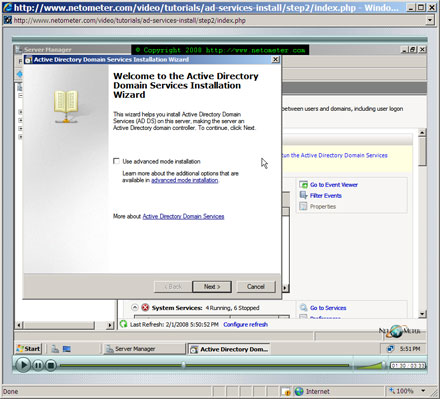
We will demonstrate the installation and configurations of these services in a series of screncasts. In the following short steps you will see how to install a new Windows Server 2008 forest. After adding the Active Directory Domain Services role we will use the Advanced mode installation in dcpromo wizard. The Advanced Mode installation provides the following additional options:
– When creating new forest – Change NetBIOS name.
– When adding new domain in an existing forest – Create a new Domain Tree, Change NetBIOS name, Source Domain Controller.
– Additional Domain Controller in an existing domain – Install from Media, Source Domain Controller, Specify Password replication Policy (for RODC).
– Create an account for RODC – Specify Password replication Policy.
– Attach a server to an account (RODC) – Install from Media, Source Domain Controller.

The DCPROMO wizard which you can use for the Active Directory Domain Services role installation provides an improved and friendlier interface compared to the previous versions of DCPROMO.
For example you don’t have to run “DCPROMO /adv” in order to use the advanced mode. As you can see in the screencast below this is available as an option in the beginning when you start the wizard.
Also you can set the Forest and Domain functional levels and export the answers which you have provided to an unattend file – in case you want to run DCPROMO later or use the file for a Core server promotion.
The following Screencast demonstrates the installation of a new Windows Server 2008 forest.

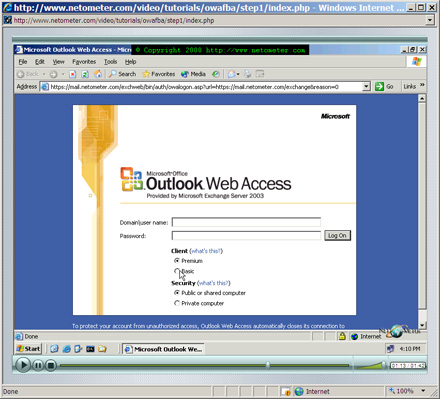
How to install active directory in windows server 2008

Stay tuned on NetoMeter – subscribe to NetoMeter RSS.

Dean
0 FacebookTwitterPinterestLinkedinWhatsappTelegramViberEmail
Windows Server 2008

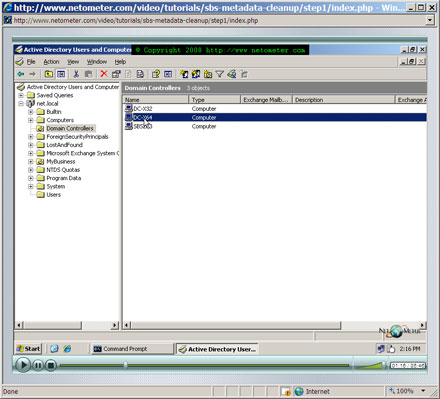
How to Perform Metadata Cleanup

by admin July 27, 2008

There are situations when you have to perform Metadata cleanup in Active Directory. Typical examples when you have to perform Metadata cleanup are:

  • Delete an extinct Domain Controller metadata
  • There are no domain controllers currently available in the parent domain when you try to demote the last domain controller in an immediate child domain.
  • Failed DCPROMO – Active Directory Installation Wizard can not complete because there is a name resolution, authentication,replication engine, or Active Directory object dependency.
  • Exceeded Default Tombstone Lifetime (60 days) – a domain controller has not replicated incoming Active Directory changes in Tombstone Lifetime.
  • Demote and promote back a Domain Controller

In this Step-by-Step Screencast, we will demonstrate how to perform metadata cleanup. We will walk you trough the necessary changes in Active Directory, DNS server configuration and Sites-and Services Snap-in.

How to Perform Metadata Cleanup

Stay tuned on NetoMeter – subscribe to NetoMeter RSS.

Dean

0 FacebookTwitterPinterestLinkedinWhatsappTelegramViberEmail
Newer Posts
Older Posts
November 2026
M T W T F S S
 1
2345678
9101112131415
16171819202122
23242526272829
30  
« Nov    

NetoMeter Blog

  • Video Updates
  • Upcoming Videos
  • Community Chatrooms
  • Community Forum
Facebook Twitter Rss Envelope

Useful Links

    • Contact Us
    • Collaboration
    • Adverstising
    • Privacy Policy
    • Feedback
    • Terms of Use
    • Help & Support
    • News Covering
    • Trending Now

Edtior's Picks

ACMEExchange Let’s Encrypt Client: How to Install a LE Certificate in Exchange Server
Coming Soon: How to Migrate File Servers to Server 2022
Screencast (Part 2): How to Upgrade from Exchange 2013 to Exchange 2019

Latest Articles

ACMEExchange Let’s Encrypt Client: How to Install a LE Certificate in Exchange Server
Coming Soon: How to Migrate File Servers to Server 2022
Screencast (Part 2): How to Upgrade from Exchange 2013 to Exchange 2019
Screencast: How to Upgrade from Exchange 2013 to Exchange 2019
NetoMeter Blog
  • Home
  • Windows Server
  • Exchange Server
  • SharePoint
  • Tools
    • ACMEExchange Client
NetoMeter Blog
  • Main Site >>
  • Home
  • Windows Server
  • Exchange Server
  • SharePoint
  • Latest Videos
  • Upcoming
©2024 NetoMeter All Right Reserved.